All about Clients & Master Clients. See Also Clients, Products & Contacts
Clients
Clients are an essential part of the Advvy system and form part of the security hierarchy for campaigns.
Clients can be a single entity – ie one record for one client such as a brand.
Clients can be part of a Master Client where there are multiple clients managed under the Master client entity.
Clients can be defined in any way required by an organisation, it can be a company, a brand, a department etc.
The key to maximising the Advvy hierarchy and access for users depends on how you define and construct your client records.
!! Please ensure all Client records have a unique Name. Duplicate Client Names can cause problems for security controls.
Master Clients
Master Clients help classify individual clients records. It is not mandatory to have a Master Client for a client record.
Master Clients also help define workflow processes that apply to all clients within the Master client entity.
Campaigns however are only ever applicable to Client entities, not Master Clients.
Client Team
When a new Client is added to Advvy, the system automatically creates a Client Team entity. The Client Team name is <client name> + “Team”.
The Client Team controls the security and visibility of the Client information contained in the client record.
Users are added to the Client Team to grant them access to the client record and all client related campaigns.
Client team access is controlled individually via the User Profile Client Team Membership, or via Team Groups.
Creating a new Master Client
To create a new Master Client:
-
- Navigate to the Customer>Master Clients view
- On the Ribbon select +New. The New Master Client form will display.
- Enter the relevant Master client information and then select ‘Save and Close”
To add existing clients to the Master Client:
-
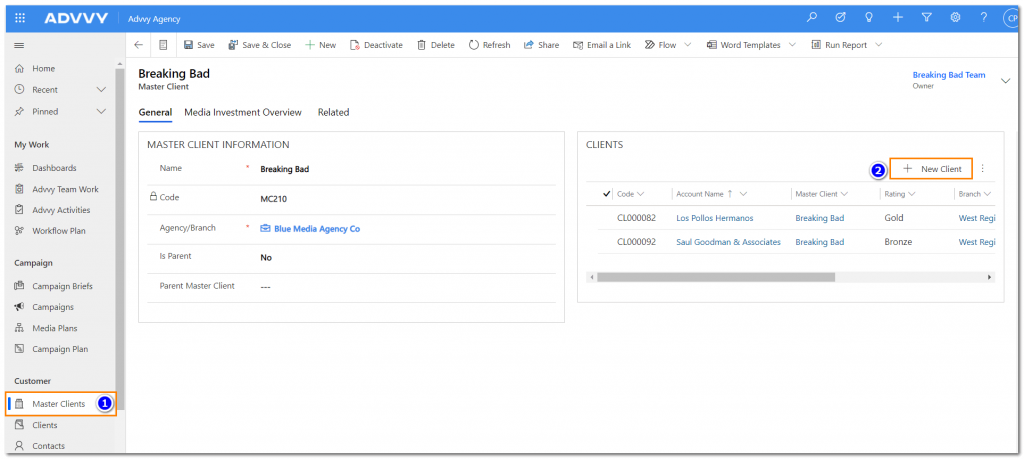
- Navigate to the Master Clients view and select the Master Client
- In the Clients grid select the [+New Client] button
- Search and select the Client (or clients if adding more than one) and then select [Add]
- Save and Close
Creating a new Client
To create a new Client:
-
- Navigate to the Customer>Clients view
- On the Ribbon select +New. The New Client form will display.
- Enter the relevant client information and then select ‘Save and Close’. You can also select the Master Client for this client on this form.
Note a new Client Team is created automatically once the Client record has been saved.
Adding a user to a Client Team
Adding a user to a Client Team will provide access to the client and any client related campaigns and activities.
Campaigns related to the client and any related activities can be assigned to users who are a member of the Client Team.
Users will be able to see related client campaigns in their dashboards and view lists.
Adding a user to a Client Team can be performed in 3 ways:
- Via the Client Team form
- Via the User Profile form – See User Settings for more
- Via Team Groups – See Team Groups for more
To add a user to a single Client Team:
-
- Navigate to the Client list and select the Client record.
- On the Summary tab click on the Client Team name (Owner field link). This will display the Client Team record.
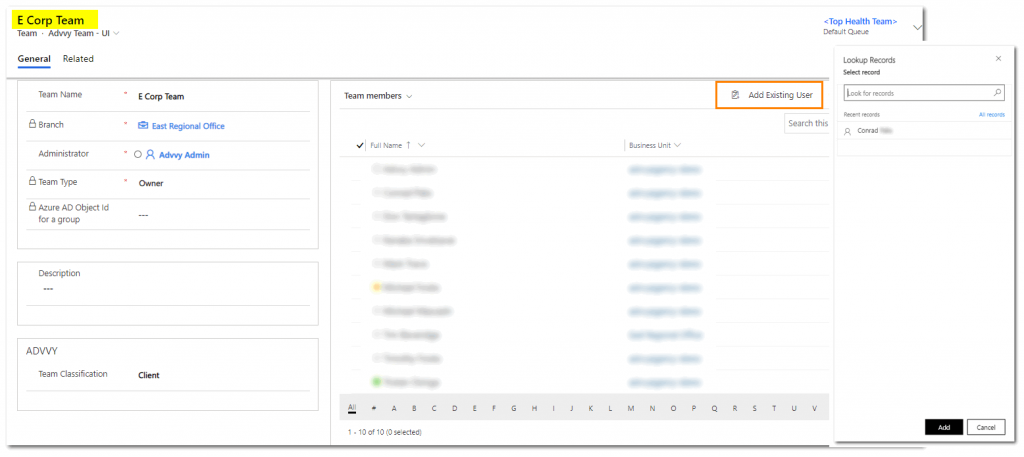
- In the Team Members grid, select [Add existing user].
- Search and select the User (or users if you want to ad more than one) and then select [Add].
- Save and Close.
Removing a User from a Client Team
Removing a user from a client team will revoke their access to the client and any client related campaigns and activities.
Tasks that were assigned to the user will still be assigned to the user and will display their name, but the user will not see these tasks in their activities lists.
To remove a user from a single client team:
-
- Navigate to the Client list and select the Client record.
- On the Summary tab click on the Client Team name (Owner field link). This will display the Client Team record.
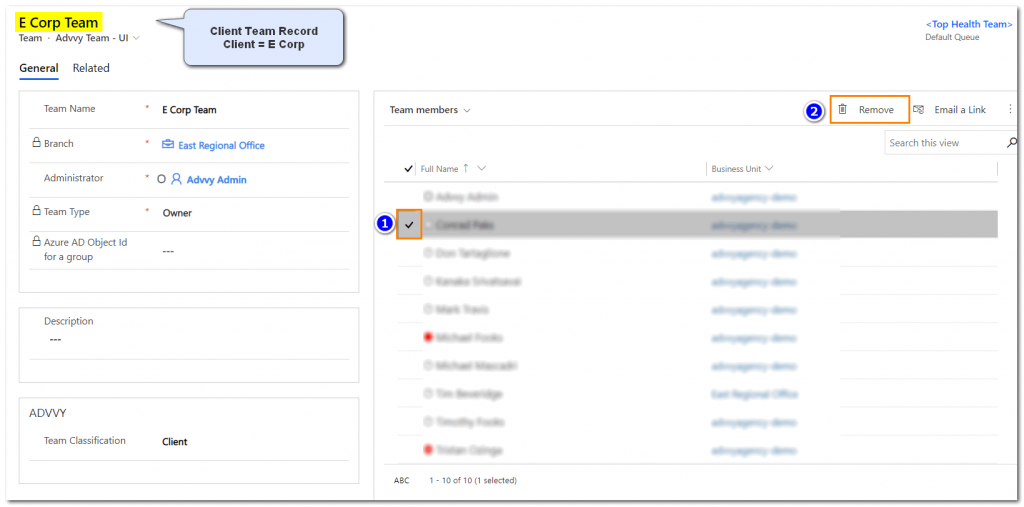
- In the Team Members grid, select the User record and then select [Remove].
Deactivating a Client (Not Delete)
WARNING: Deleting a client record could be detrimental to all of your Advvy reporting and Campaign records.
It is recommended to Deactivate a Client record that is no longer needed for reporting in Advvy.
Deactivation ensures that all related campaign record, work history and compliance history is maintained in the system.
Deactivation will move the Client entity from the Enabled Clients list to the Disabled Clients list.