Advvy Activities is the place where you can view your workload and the work related to the campaigns you have access to view.
There are a number of different system views available that can show you Tasks based on different selection criteria.
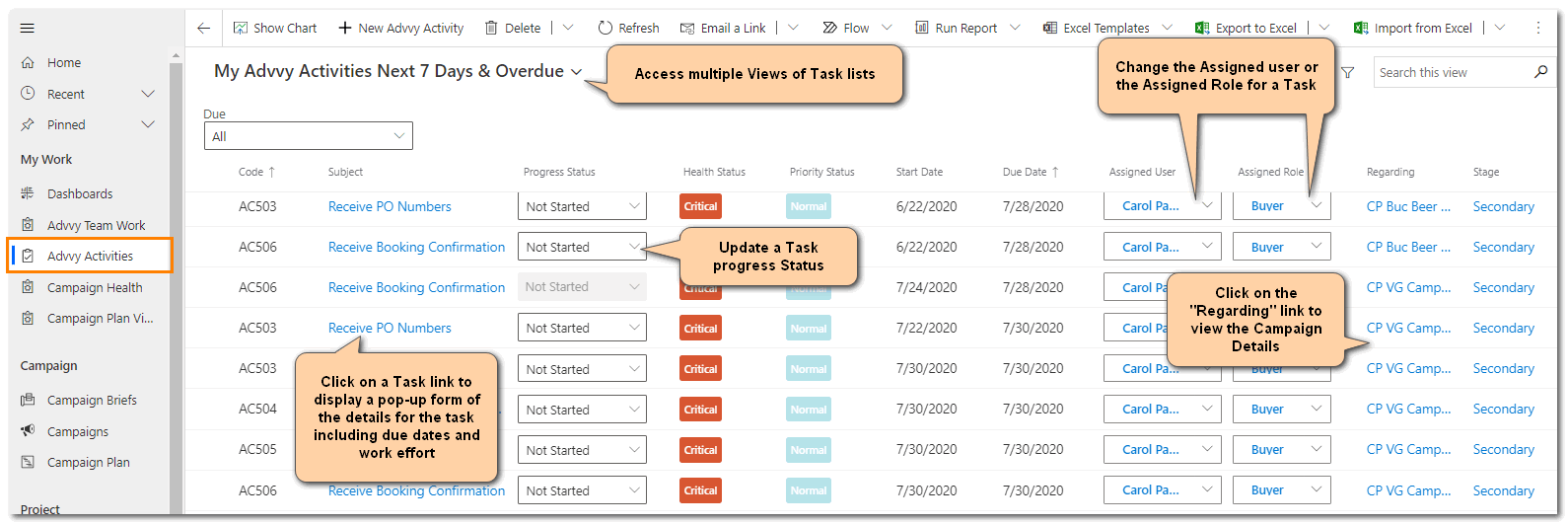
The Default view is “My Advvy Activities Next 7 Days & Overdue”. This view will display a list of tasks that have been:-
- Assigned to you
- Due within the next 7 days, plus
- Tasks that have missed their due date and are still awaiting your action.
In My Advvy Activities you can perform the following actions:
- Update the progress status for an individual task
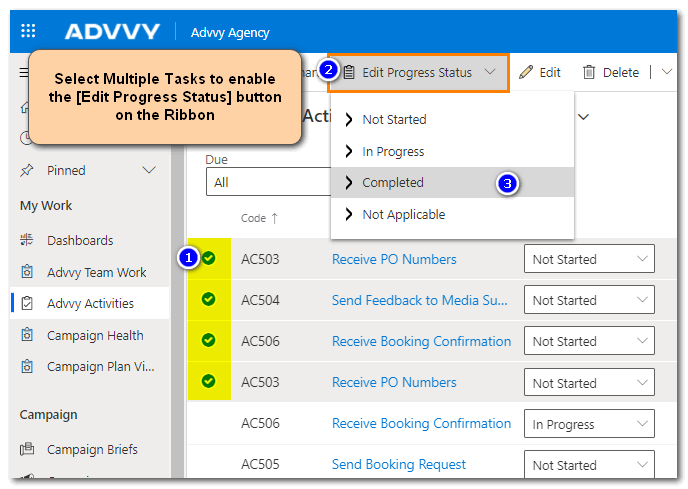
- Bulk update the Progress status for more than one task- see below
- See the task details by clicking the Subject link (in blue)
- Change the Assigned user for the task
- Change the Assigned role for the task
- See the Campaign details by clicking the Regarding link (in Blue)
Other views can show you
- “All Tasks” for all active campaigns that not yet completed (Closed). (This is useful if there are tasks that have not yet been assigned to people, or if you want to see what other team members are responsible for completing)
- “Workflow Plan – Active Campaigns” shows tasks on a calendar planner by campaign. (This is useful to view on a planner and allows you to adjust the due date for a task by dragging the task along the timeline)
Bulk Editing is possible in the Advvy Activities view
Select two or more tasks and the Edit Progress Status button will appear on the Ribbon, where you can then select to bulk update the status for the selected tasks.
Completed Tasks will stay visible in your view until the next day when they will be removed leaving only active tasks on the list.
The main purpose of Advvy Activities is to show users their workload and to allow them to update the Progress Status for these tasks.
Reassigning Tasks to Other Users
When viewing your activities list or All Tasks lists, Users can be changed manually by selecting the drop-down and choosing a new person.
Once a Task has been reassigned it will no longer appear in your “My Advvy Activities” view and if notifications are turned on, it may notify the other user that a task has been assigned to them.
Quick Add Time Log
Some Clients may require actual time to be logged for tasks, and Advvy has included a [Quick Add Time] button to the ribbon where you can add pre-defined time to a task eg 30mins, 1hour, 2hours.
Workflow Activities have Effort Logging available within the Campaign task details, and via a Quick Add.
Click here for more information about Effort Logging.