This how-to guide will focus on adding a user to an existing campaign. Understanding this process is crucial if a new team member, or an existing team member with a new role, needs to work on a campaign that has already begun.
Remember, a user will only be eligible for task assignment in a campaign if at least one of their roles matches at least one role within the campaign’s workflow.
This guide takes advantage of the Allocate: Team Members functionality and will require modifying user records. Be sure to understand these areas of Advvy before moving on. If needed, please review the Advvy: How to Allocate Workflows and the Advvy How To: Add New Users for more in depth information on these processes.
In this guide:
-Checking the users assigned to a campaign via the Workflow Summary tab
-Using the Allocate Team Members function to add an updated user to a campaign
Checking the users assigned to a campaign via the Workflow Summary tab
If you cannot assign a user to an activity within a campaign, check to see if they have been added to that campaign. Users can check this by clicking on the Workflow Team icon on the Workflow Activities Tab. After clicking the icon, a side panel will appear which shows a list of roles and the users that are assigned to those roles in the campaign. Check this list for the name of the user you’re looking for.
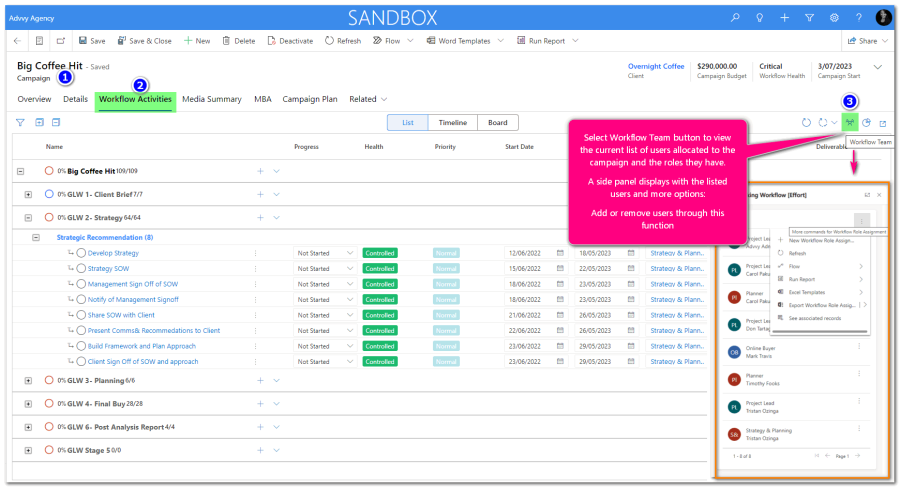
If the user is not found in this box, they were not added to the campaign, and you need to verify two details:
- Ensure the user is part of the client team of the client that’s assigned to that campaign
- Quick verification is by selecting the + New Workflow Role and searching for the User name in the panel.
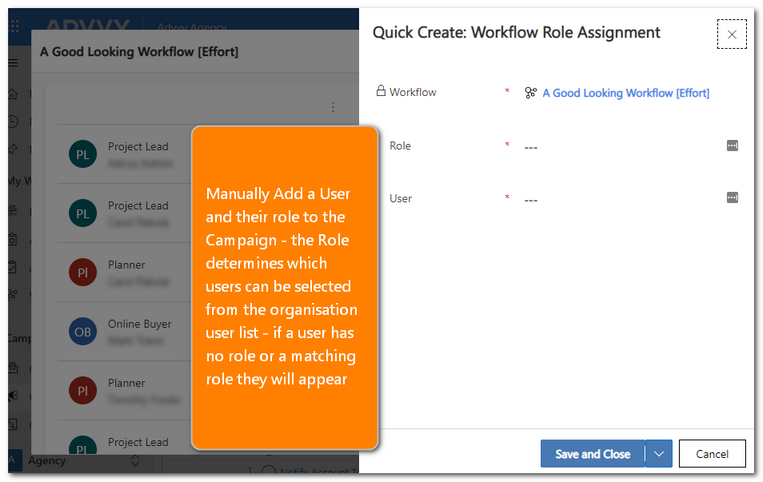
- Quick verification is by selecting the + New Workflow Role and searching for the User name in the panel.
If the username does not appear then its likely they do not have access to view this client record. You can check the User Profile in Advvy Settings (See below)
You can verify what clients a User Profile has been setup to access by following the steps below:
-
-
- Go the the Agency Settings section of Advvy by clicking “Agency” towards the bottom left corner of the screen.
- Scroll down and click on Users
- Select the User you’re checking (double click to open the user profile)
- Click on the Agency Assignments tab
- In the Client Team Membership box, check to make sure the client team is listed
- If not listed, click the +Add Existing Team button, look for the record, select it and hit add
- Be sure to save after making any changes
-
Tips for User profiles: Ensure the user has a role that matches at least one role in the campaign’s workflow.
For more information on roles, and how to add a role to a user, follow the steps in this guide.
Notes:
-
After verifying the above steps, users are not automatically added to existing campaigns. (Any campaigns created in the future will automatically include them.)
-
To add users to existing campaigns, after ensuring they are on the correct client team and have the correct roles, users can utilise the Allocate Workflow: Team Members function, details below.
Using the Update Team Members function to add a user with updated roles to an existing campaign
Before starting this process ensure that all users that need to be added to a campaign are on the correct client team and have the correct roles, direction on this above
- Open the Campaign and navigate to the Workflow Activities Tab.
- Select the Workflow Options Icon on the right navigation corner to display a list of functions.
- Select Update Team Members
- Wait for the changes to occur & Refresh the page
- The user should be available to be assigned task