If members on your team only work on campaigns with a specific workflow, they can use Advvy’s
filtering option to modify their view and only see campaigns with that workflow.
In this guide:
- How to use Advvy’s built-in filtering options in the campaign section
To create this filter:
- Navigate to the Campaigns section
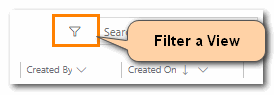
- Click on the filter icon in the top right corner. The filter sidebar will pop out
- Click the [+Add] button, and click Add row

- From the list, select Workflow Definition
- Use the box to the far right to search for the workflow you’re looking for, or use the drop-down menu to search for the workflow
- Click [Apply] on the bottom right corner of the screen to apply the filter
- Your campaigns should now be filtered by the workflow selected
Important notes:
The filter will hold as long as the user stays in the Campaign section, leaving the section clears the filter.
This view can be saved as a personal custom view. Refer to Advvy How To: Create a Personal Campaign View