Highlighted Features in This Release
- Introducing Advvy Self-Help
- Campaign Plan: Re-design with NEW Grouping
- Campaign Workflow Activities: Add New Stage
- Advvy Team work stage ordering plus Project Tasks
- Advvy Activities: Quick Add Time (New) + Effort Summary Reports (New)
- Media Plan: Advvy Add-in for Excel V3 (New)
- Media Plan: Validate Data
- Media Plan: Fast Sync + Campaign Import Jobs
- Media Plan: Advvy Data Flighting valid fields
- Campaign Media Summary – Create MBA (New)
- Client Portal: Re-design with NEW MBAs
- Reports: Champions report for Team Groups
- Platform: New Fields – Language, Fee Type (Fees, Charges, Rebates)
Introducing Advvy Self-Help
It’s finally here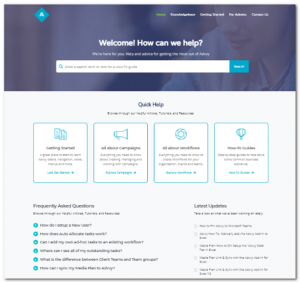 ! The Advvy team have created a self-help site where users can find helpful articles about the Advvy platform, Media Planning, Workflow Management and Client Portal.
Simply click on the ‘?’ or press F1 and it will launch the Advvy Knowledgebase system.
We’ve arranged our content into Categories and have included some helpful Getting Started Guides for new users, Admin Guides for the Super users and How-to guides that should help address some of the ways you can get the best out of Advvy.
Use the keyword search to find matching articles and related topics, or browse the entire Knowledgebase directory.
If you cannot find an answer to your question, send Support@advvy.com an email and we will aim to reply with instructions or advice with a link to a self-help article.
(yes, we may even create a whole new article just for you).
Our team aims to keep adding more and more rich content to Self-help for each Release (Release notes are available on the site as well) to ensure all our users can excel in their use of Advvy.
Campaign Plan: Re-design with NEW Grouping
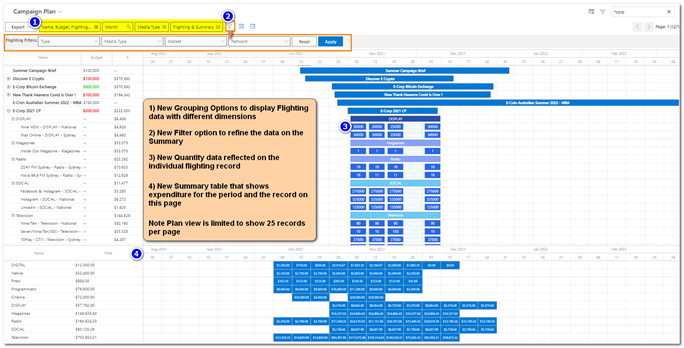
The Campaign Plan entity has been re-designed with additional filtering to visualise Media Plan flighting in campaigns. For Organisations that use Advvy Media Planning the Campaign plan features more depth and flexibility for viewing your media planning investment across all current campaigns
The main features on the Campaign plan include:
- Campaign List paginated at 25 records per page
- 9 options for Field columns –
- Name (includes Media Type & Medium for campaigns with media planning), Budget, Flighting Value (for campaigns with media planning), Parent, Client, Product, Market Type(for campaigns with media planning), Market (for campaigns with media planning), Units (for campaigns with media planning)
- Adjustable zoom level by Day, Week, Month (Default), Quarter and Year
- Ability to change the media plan data grouping for a single campaign by Media Type (Default), Market, Network and Medium
- 3 options for layout display –
- Flighting (Default) where campaigns can be expanded to show campaign start and end period, plus flighting on the gantt calendar (default)
- Summary – displays the campaign investment totals mapped onto the calendar (for campaigns with media planning)
- Flighting & Summary – displays both grids for flighting and investment totals(for campaigns with media planning)
- When you hover your mouse over a flight it will display additional flighting detail.
Campaign Workflow Activities: Add New Stage
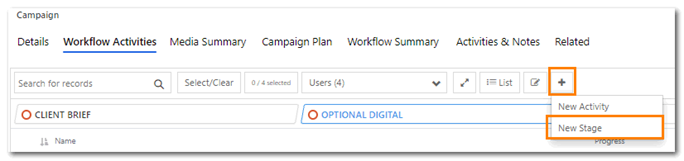
Within an existing Campaign, a new Stage can be added to the existing Workflow. This is useful if the campaign requires more tasks to be performed than what has already been outlined in a default workflow.
Adding a stage to a campaign will only add it for that campaign and will not affect any other campaigns that use the same workflow.
To add a new stage:
- Navigate to a campaign and select Workflow Activities tab.
- Select the + button on the sub-menu and select [New Stage] – a New Stage window displays.
- Edit the New Stage Details and select [Save & Close] – The new stage will appear in the Workflow Activities list.
- Now it’s time to add Tasks to the Stage. Select the + button on the sub-menu and select [New Activity] – a New Activity window displays.
- Edit the New Activity Details and select [Save & Close] – The new task will appear in the Stage.
- Repeat steps 4 and 5 as required.
TIP: You can also re-order your stages in a campaign by dragging and dropping them before or after other stages.
Advvy Team Work: Stage Ordering plus Project Tasks
Recent client feedback has prompted us to make two key changes to the Advvy Team work:
- Advvy Team Work has been updated to display campaign stages by Stage order number and not ‘alphabetical’.
- Advvy Team Work has been updated to include new Project Tasks as well as Campaign Tasks, Client Related Tasks and AdHoc Tasks.
Advvy Activities: Quick Add Time (New) + Effort Summary Report (New)
Our previous release introduced the ability to define and add Effort logging for Tasks.
Workflows can be defined to include estimated effort for tasks. This can be a useful feature for campaigns where negotiated/agreed head hours are committed for a campaign. A workflow can be created with Tasks that contain the agreed hours – and then users can log their time against these Tasks.
There are two ways to add user time logs to a task:
- Via the new Quick Add Time button in Advvy Activities- see below.
- Via the campaign Workflow Task, manually adding effort to the task. See previous release notes for instructions on adding time in the campaign record.
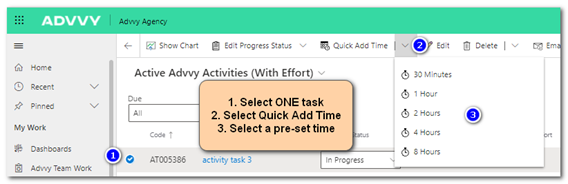
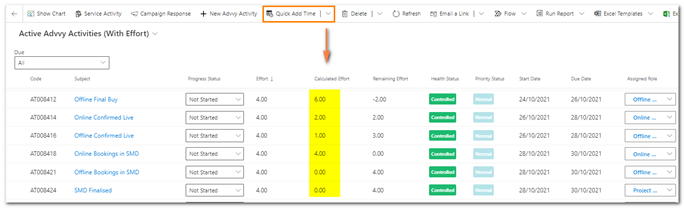
The New Quick Add Time button is found on the ribbon in Advvy Activities. As the button states this is a way to quickly add time in pre-set time increments. The time options are: 30 Minutes, 1 Hour, 2 Hours, 4 Hours and 8 Hours. Time can be added to one task at a time- no bulk updates.
To use the Quick Add Time button, it is recommended that you change your default view to one that includes the time Entry fields – Select Active Advvy Activities (With Effort)
To add time to a task:
- Select one task from the list. No bulk selections available for Quick Add Time.
- Select the Quick Add Time drop-down button on the ribbon
- Select the time period. The time will be added to the task and the Effort remaining will be reduced.
note: You may have to refresh the screen if your browser doesn’t show it immediately.
Effort Reports:
Advvy has produced accompanying SSRS Effort Summary Reports that collate the logged effort by Activity Role and User by Client. The reports are called:
- Advvy Monthly Effort Breakdown by Client
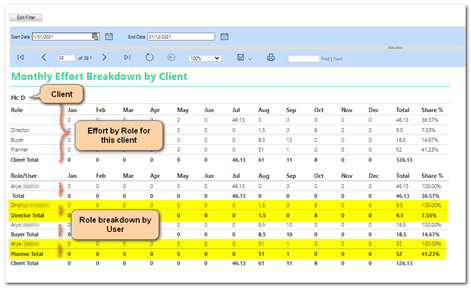
- Advvy Workflow Effort Summary
These reports are available from the following entities:
- Clients> Select one or more clients from the view list then select [Run Reports]
- Tools> Reports> Select the report, add the entity ‘Client’ and set Equals to “Client name” then Run Report.
Advvy Master Data: Alias Names field
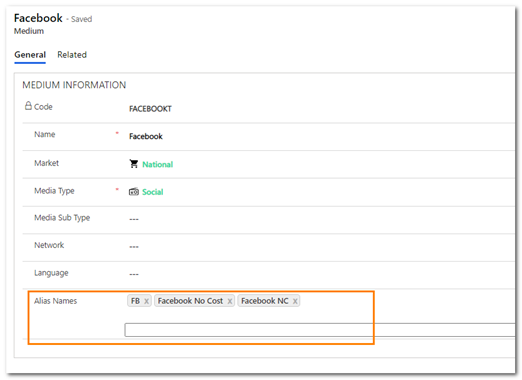 Master Data in Advvy is the source data used across the entire system. Some of this reference data has been enhanced with an additional field called Alias Names. Aliases are a great way to minimise the duplicate master data entries for financial systems that may have multiple records for a single related master reference.
The Alias Names field is used to collate similar reference data into one main data term. For example you may have a medium for ‘’Facebook’’ that also has aliases included such as ‘FB’ and ‘Facebook/Instagram’, or you may have a publication called “Sydney Morning Herald” that has alias names such as “The Sydney Morning Herald” “SMH” “Sydney Herald” etc.
Aliases are useful in Advvy for Media Plan syncing. A planner can use either the master data name or the alias name in their media plan and Advvy will recognise the master data record as a valid match for the plan.
The Master Data entities that have Alias Name fields include:
- Media Types
- Markets
- Fees
- Networks
- Mediums
Advvy Add-in for Excel V3 (New)
Advvy has updated the Media Plan Add-in for Excel to Version 3.
This version delivers improvements to the way that Advvy syncs your Media plan data saving wait times for planners.
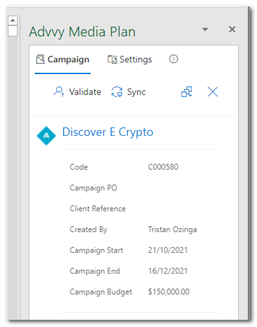
- Fast Sync – where the Advvy Data tab is synchronised to Advvy in 5-10 seconds
- Catering for additional table fields that can be included in your sync to Advvy
- New Validate where planners can check their Advvy Data tab against the master data
- Improved Create Tables capability for new Media Plans
- Improved User authentication experience between Excel and Advvy
- Quick Launch to your linked Campaign record in Advvy
- Direct link to Advvy Self-Help
The New Add-in delivers the following rich feature set of functions:
The New Add-in has modern icons to differentiate it from Advvy Add-in V2.
Will the new Add-in work with my current Media Plan templates?
Good news, YES! Existing Excel Media Plans that are configured for Advvy will work with the new Add-in. The link process is the same, the sync process is improved. The only difference will be that instead of waiting for Advvy to send ID codes down into the media plan, the new sync process no longer users the ID codes fields and will take seconds to send all the data tables to your Advvy campaign for processing.
Media Plan – Validate Data
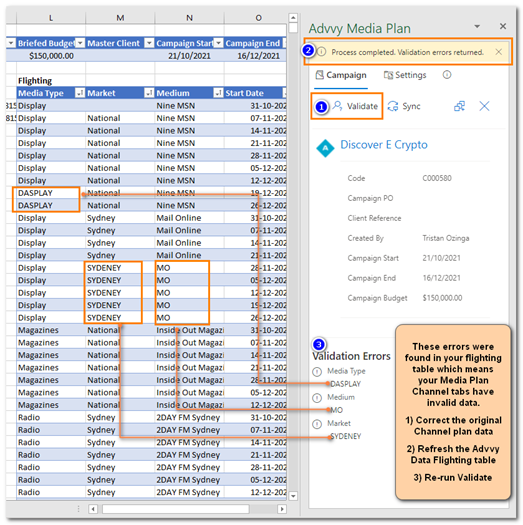
The New Advvy Add-in includes a Validate function that will analyse the media plan data on the Advvy Data Tab and return any mismatched entries. Plan data needs to match the named data exactly as it is entered into Advvy.
This is a very useful step to perform before syncing the data to your Advvy Campaign.
If there are validation errors, and the user ignores them and chooses to sync unmatched data, you will end up with incomplete campaign flighting records, with blank field entries.
The Validate button will check the data in the Channel Table, Fees Table and Flighting Table and return any errors it finds.
If errors are found you should either
- Correct them in your plan and refresh the tables on the Advvy Data Tab (recommended)
- Speak to your Advvy Admin to add any missing data to Advvy Master Data – either as a new record, or an alias name.
Media Plan Sync – Fast Sync
The New Advvy Add-in includes a new Fast Sync experience for users.
Previous Advvy Add-in V2 used to send the Advvy Data tab information row by row to the Advvy Campaign Record and return an Advvy ID code in real-time. Whilst this process proved that the sync was working, it also proved to take a very long time and was costly to the user experience tying up the media plan in excel until all rows were processed. We wanted to save time… a lot of time!
With Fast Sync, all of the Advvy data tables are sent to Advvy in one process step taking from about 5-10 seconds (for a standard media plan). Once the Sync has drawn the data out of the plan, Advvy will process it in the cloud, meaning the Excel Document is no longer waiting for the sync to complete.
For Admins – How to Check the Import:
- Sync will pick up all the data tables from Excel and begin processing them in the cloud.
The excel file is no longer waiting for an Advvy response. - In Advvy, the Campaign record will load a Campaign Import Job record where it will display the progress of the media plan data sync process.
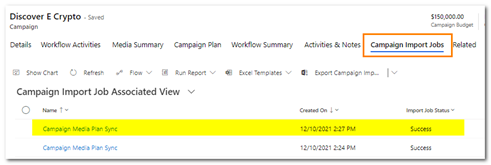
- If you select the Import Job link you will view a status of each Advvy Data table as they are be processed separately, but concurrently (because that’s the power of cloud processing).
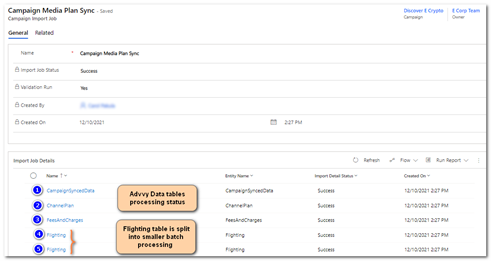
(The processing time could take a long time if the media plan has a lot of data).
- Refresh the Campaign Import Jobs table to check on progress. When it’s ready it will show as “Success”.
NOTE: While a Sync is processing to the Campaign record, any subsequent attempts to sync the excel media plan will have to wait until the processing is complete. Excel Media Plan Sync will display a message indicating “Another sync is processing”.
Media Plan: Advvy Data Flighting valid fields
The new Add-in has resulted in a change to the location of the flighting records in a campaign and also the number of fields that can be synced.
- Media Plan Flighting records can now be found in the Campaign under the
‘Related> Campaign Flighting’ tab.

- The new Add-in has extended the ability for more Advvy data fields to be captured from your Media plan as outlined below. If you want to update your media plan flighting tables to utilise these new fields, this will require an Excel expert who can edit the table and the associated flighting Macro. (Advvy can provide this update as a service for your plans).
Media Type – Mandatory Text field that needs to exist in Advvy master data = Media Types
Market – Text field that needs to exist in Advvy master data – Markets (will be auto populated if blank)
Medium – Mandatory Text field that needs to exist in Advvy master data – Mediums eg publishers, radio stations, websites
Network – Text Field that needs to exist in Advvy master data – Networks (will be auto populated if blank)
Language – Text field that needs to exist in Advvy master data – Languages (will be auto populated if blank)
Media Sub-type – Text field that needs to exist in Advvy master data – Media Sub-Type (will be auto populated if blank)
Fee Type – Text Field that needs to exist in Advvy master data – Fees
Fees Amount – Currency Field for a fee amount
Gross Amount – Currency Field for Gross Amount roll-up
Net Amount – Currency Field for Net Amount roll-up
TCC Amount – Currency field for Total Cost to Client roll-up
Status – Text field that matches one of the available Advvy Status fields (Actual, Approved, Booked, Complete, Loaded, PCA Complete, Planned, Pre-Planned)
Start Date – Mandatory Date field representing the start date of the flight
End Date – Mandatory Date field representing the end date of the flight ie +6 days after Start Date
Description – Text field that needs to exist in Advvy master data –
Units – Free Text field eg CPM, CPA
Quantity – Number field eg 1
Value – Currency field eg $ value of one unit
Text 1, Text 2, Text 3 – Extra Free Text fields available to be populated
Number 1, Number 2 – Extra Number fields available to be populated
Check 1, Check 2 – Extra yes/no fields available to be populated
Campaign Media Summary – Create MBA (New)
Our previous release introduced the new Create MBA function. This feature collates Media Plan flighting data into a digital format.
In the current release the feature has been extended to deliver the following functionality:
- The generated MBA digital record also produces a physical PDF document that can be downloaded and emailed to a client.
- The digital MBA form includes the ability to supersede previous identical MBA records.
- The digital form also includes the ability for one or two approvers to be recorded on the form.
- For Clients that have access to the Advvy Client Portal – if the MBA is marked as ‘Awaiting Approval’, it will be made visible on the Portal and will allow client contacts to digitally sign and mark the MBA for approval.
Refer to Advvy Self-Help for more about MBAs in Advvy.
Client Portal: Re-design with NEW MBAs
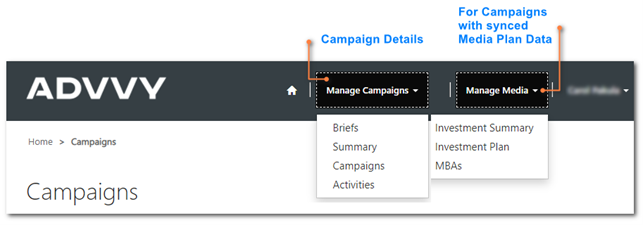
The Advvy Client Portal has been re-designed to group Campaign and Brief details in the ‘Manage Campaigns Menu, and to group Media Investment views, the Campaign Plan and pending MBAs under the ‘Manage Media’ menu. The new portal update supports the new Digital MBAs.
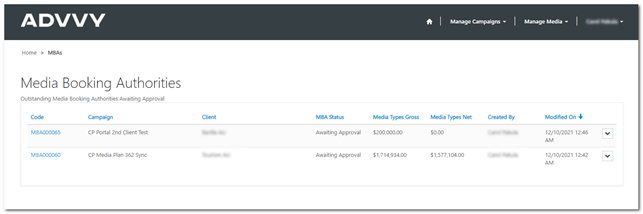
MBAs is where a Client Contact can view a list of Pending MBAs awaiting client approval.
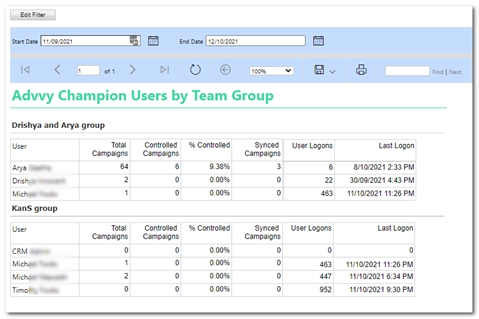
Reports: Advvy Champion Users report for Team Groups
Recent client feedback has prompted us to create a report that Administrators can run to display some statistics about Team Groups and the frequency of usage of Advvy by users.
This SSRS report is available to be run from the following entities:
- Advvy Settings > Team Groups – Select one or more Team Groups from the view list then select [Run Reports]> Advvy Champion Users Report
- Tools – Reports – Select the report, add the entity ‘Team Groups” and set Equals to “Name of the Team Group” then Run Report.
Release Details
- Enhancements
| Area | ID | Title |
| Campaign | 3705 | Campaign Plan – Campaign Flighting hover to display additional data |
| Campaign | 4794 | Add Campaign Plan to the client record |
| Campaign | 4795 | Campaign Plan – Sort order for Campaign Plan PCF |
| Campaign | 4820 | Campaign Plan – Ability to add data values into the individual flight weeks. |
| Campaign | 4910 | Campaign Plan – Click to Campaign from Campaign Plan Dashboard |
| Campaign | 4915 | Campaign Plan – Pivot Data to Display Campaign Plan According to Different Parameters. |
| Campaign | 5456 | MBA – Add Field to capture legal content for MBA per client |
| Campaign | 5457 | MBA – Add additional fields to support MBA process and portal display |
| Campaign | 5464 | MBA Plugin Support to handle contact status change auditing and roll up approval status |
| Campaign | 5480 | MBA – Handle a second MBA approver on the form |
| Campaign | 5483 | Reworked Campaign Plan – to load from Campaigns list. |
| Entity | 5192 | Users: Create new fields for user assigned task notifications completed by another user by email and by teams |
| Entity | 5226 | Client: Add the list of users in the Client team to the client form |
| Entity | 5428 | Media: Create New Language Reference Data Entity |
| Media Plan | 3498 | Media Plan Excel Add-In – UX design |
| Media Plan | 4768 | Media Plan Add-In: Ability to make any excel spreadsheet an Advvy Sync Plan (without flighting) |
| Media Plan | 4816 | Media Plan Add-In New Approach to Syncing using JSON |
| Media Plan | 4904 | Media Plan Checker: Ability to check master data entries for any unmatched data fields |
| Media Plan | 5369 | Add Network and Media Subtype fields to Campaign and MBA Flighting entities |
| Media Plan | 5413 | Create Plugin Action to Allow Pre-Sync check of Data |
| Media Plan | 5414 | Create Plugin Action to Allow Creation of Import Job |
| Media Plan | 5415 | Create Plugin Action to Allow Creation of Import Job Entry Records |
| Media Plan | 5416 | Create Plugin Action to Process Import Job Entry and create records |
| Media Plan | 5429 | Add Language Reference field to Campaign Flighting |
| Media Plan | 5430 | Campaign Flighting Create – Add support to fill in gaps with language field if missing from media plan sync |
| Media Plan | 5431 | Campaign Flighting Create – Add support to fill in gaps with Market field if missing from media plan sync |
| Notification | 3708 | Flow: Client notified when campaign brief created on the client portal |
| Notification | 5189 | Flow: Consolidate flows that trigger when a user is assigned to a task |
| Notification | 5191 | Flow: Notify Assigned User when task is completed by someone else |
| Portal | 3520 | Create a method of assigning one contact to many “clients” |
| Portal | 5013 | [DESIGN] Client Portal: Campaign Activities – Showing Blocking & Blocked Tasks that are Client Viewable/Editable |
| Portal | 5228 | Client Portal: Campaign Brief needs to respect portal user’s currency setting |
| Portal | 5255 | Client Portal: Gantt Charts – Client Selection Drop Down |
| Portal | 5358 | [DESIGN REVIEW] Client Portal: New Homepage Design |
| Portal | 5503 | MBA – Show up MBA’s in the Portal |
| Portal | 5509 | Client Portal: Campaign Plan Update |
| Reports | 5219 | Add currency conversion functionality to Advvy Base Reports |
| Reports | 5220 | Add currency conversion to existing Campaign reports |
| Reports | 5221 | Add currency conversion to existing Media reports |
| Reports | 5222 | Advvy Workflow Effort Summary Report |
| Reports | 5381 | New Report – Advvy Champions Report |
| Tasks | 4326 | Task List as a PCF Control |
| Tasks | 5014 | Match Assignments – Make a new function that allows the assignment of tasks to match those of an existing workflow |
| Tasks | 5337 | Add ability to Quick-Add time log entries for the current user for a preset amount of time. |
| Tasks | 5357 | Task Effort Logging – Increase ease of entry for time logs against tasks |
| Tasks | 5484 | Task List – Create new stage |
| Tasks | 5496 | Time Log Entry – Quick Add buttons from task lists |
| Views | 4809 | Mediums: Create new view that lists all mediums created in the last week |
| Workflow | 5101 | Workflow Definition – Capture copy of definition to include any ad-hoc tasks from a workflow instance |
| Workflow | 5222 | Advvy Workflow Effort Summary Report |
| Workflow | 5239 | Remove ‘text’ version of Information Link |
- Bug Fixes
| Area | ID | Title |
| Campaign | Bug | BUG: Clear Campaign Statistics for Current/Next stage fields when a campaign is Closed/Completed – Inactive |
| Campaign | Bug | Campaign Plan Sort Order – Not in Date order |
| Campaign | Bug | Campaign Start/End Date Validation errors for Pacific Timezone |
| Campaign | Bug | On clearing the Currency on personalization settings ,the Campaign Flighting history disappears from Campaign Plan |
| Data | Bug | Contact types entity is not used on Contacts entity |
| Notification | Bug | Flow: Update time-based notification flows to respect users working day selections |
| Portal | Bug | Client Portal: Product field not populating on campaign brief forms |
| Project | Bug | Project Start/End Date validation errors for pacific time |
| Project | Bug | Project form: The “Update Workflow” button and “Allocate Workflow” flyout button needs to be hidden on NEW and DEACTIVATED projects |
| Tasks | Bug | Activity’s health status update not getting reflected on refresh |
| Views | Bug | Ensure Advvy Activity Health and Action Statuses are synchronised when OOTB State and Status Reason fields are changed |
| Workflow | Bug | MEDIA WORKFLOWS – Media Workflow Definitions with a status of ‘Draft’ are displaying in the ‘Active Media Workflow Definitions’ view |
| Workflow | Bug | New Media Workflow form prompts for changes, if you leave without saving. |
| Workflow | Bug | Media Workflow Definition: Setting WF definition as default incorrectly displays confirm dialog when no default WF definition of the same level exists |
| Workflow | Bug | Workflow Create hits 2 minute timeout with large teams and lots of roles assigned |
*List excludes internal backend Advvy development and bug fixes.
- Data Upgrades
*Advvy performing data housekeeping on existing records to ensure compatibility with new features
| Area | ID | Title |
| Data Upgrade | 5367 | Data Upgrade – Fill in Media Sub Type from Medium on Campaign Flighting |
| Data Upgrade | 5368 | Data Upgrade – Fill in Network from Medium on Campaign Flighting |