Highlighted Features in This Release
enhanced 2022 dec release
- UPDATED Campaign Fee Flighting
- UPDATED Campaign Plan control
- UPDATED Advanced MBA with Create by Period
UPDATED Campaign Fee Flighting
Previously fees were only reported on as Fee Types assigned to the campaign as a whole. It was not possible to see fees over time within a campaign. Advvy has introduced Campaign Fee Flights. This is a secondary flighting table that allows a media plan to split fees by type by time. This allows for better reporting on fees.
Benefits:
- Fees no longer just a bulk value against the entire plan, split the fees by time – eg create fees per month or fees per week
Fee flights can be captured from the media plan into the Advvy Campaign plan control and can be visualised on the gantt chart
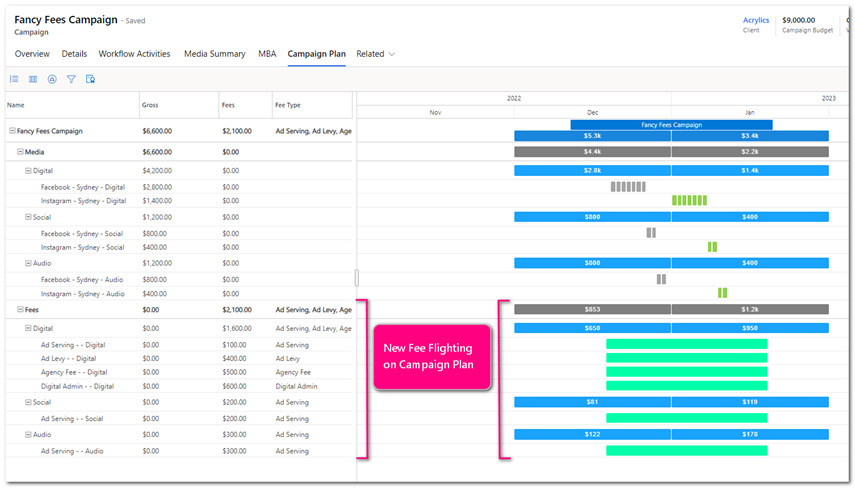
- Fee flights set per period can be added to Advanced MBAs so that both Media and Fees can be added to the approval.
- Agency visibility of fees at a more granular level.
- How to Use: Update your Excel Media Plan to allow for fees to be broken down into fee flights.
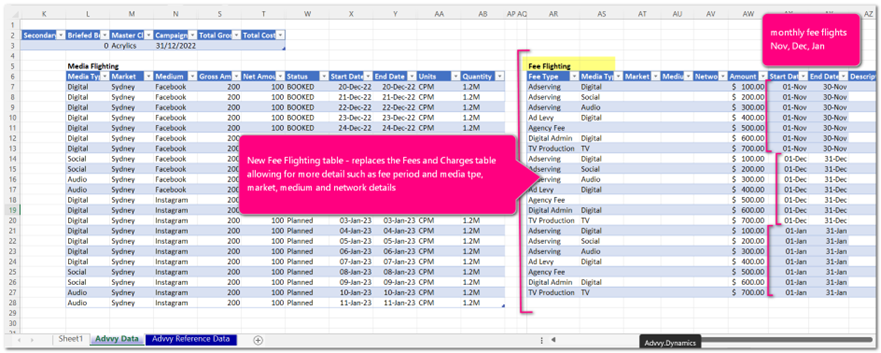
- Create a new macro or add formulas to the new Fee Flighting tables on the Advvy Data Tab.
Contact Advvy to help create a macro to capture your current media plan fees as Fee flights.
UPDATED Campaign Plan Control

Advvy has made improvements to the campaign plan controls to improve expenditure reporting for both individual campaigns and groups of campaigns.
The update gives a more expenditure orientated laydown and flowchart, grouped by different parameters and providing a summed total of each group designated. This update removed the need to have a separate control underneath the plan to summarise the expenditure. Now the Campaign Plan and Expenditure is one and the same.
Single Campaign Plan (Record Campaign Plan)
- Expenditure by Time
- Now introduced on each grouping level is the sum of the gross media of each level under it by time. It will display this expenditure on the bar on the flowchart. This bar indicates that below it, within that time, is media planned. The lowest level is always Campaign Flightings that indicates the details of that media activity. The length of time that is summed is related to the zoom level on the control.
- Day, Week and Month view is summed by month
- Year view is summed by year.
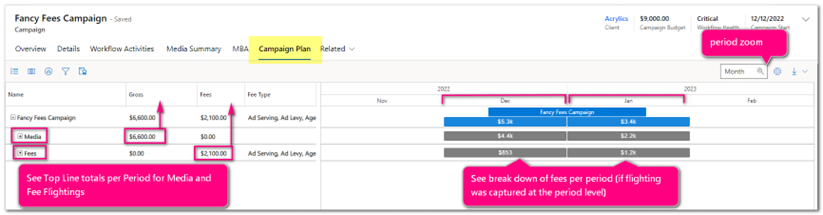
- Now introduced on each grouping level is the sum of the gross media of each level under it by time. It will display this expenditure on the bar on the flowchart. This bar indicates that below it, within that time, is media planned. The lowest level is always Campaign Flightings that indicates the details of that media activity. The length of time that is summed is related to the zoom level on the control.
Controls

- Grouping Levels
- Previously
- It was only possible to group campaigns in 2 levels “x” by flighting. – Media Type and Flighting, Market and Flighting, Network and Flighting, Medium and Flighting. This limited the ability to get expenditure by the design parameters.
- Now
- The Campaign Plan now has a master grouping of Media and Fees. The Campaign Plan Separates these out as two groupings that will always stay on the campaign plan. (Fees won’t show if Fee flighting isn’t used)
- Underneath Media
- It is now possible to create up to 5 levels of groups, with each lower group summing up the expenditure to the higher group.
- The lowest level is always flighting.
- By selecting the levels on the grouping icon, and the order in which you select them will “pivot” the plan by that selection.
- eg Media by Markey By Network, By Medium By Flighting.
- Any combination of Media, Market, Network and Medium can be selected, as 1, 2, 3 ,or 4 groups/levels to report on.
- eg Media by Markey By Network, By Medium By Flighting.
- Previously
- Columns
- Columns are now selected from the flighting record only. Previously it also included some columns that came from the campaign record like Budget, client and product. As these were only displayed on the campaign line, it took up unnecessary space.
- More columns have been added from the flighting record to accommodate for different ways of seeing the plan.
- Expand Selection
- Updated expand selection function, so that depending on what groups have been selected, it’s possible to easily expand to the level and summary that you need. There are 2 levels
- Campaign – Minimises all levels and only shows summary of Campaign, Media and Fees
- Group – expands to show the summary of each group that is selected. IT will show all summary levels.
- Flighting – Expands the whole plan to show individual flightings under the lowest group selected.
- Updated expand selection function, so that depending on what groups have been selected, it’s possible to easily expand to the level and summary that you need. There are 2 levels
- Filters
- This filter control allows you to filter the flighting records so that you may ascertain a better understanding of a specific view of expenditure you need.
- The filter control is also used to create an MBA by the filtered records.
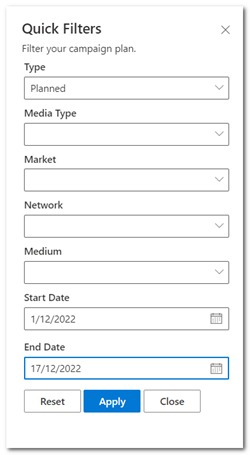
- The newest filter is a filter by time. This enables you to filter the records by a period of time that will then be used to generate an MBA record that time.
- Advanced MBA Create
- Previously an MBA was created from the ribbon bar. This was a separate process of manually selecting media types to create an MBA. It easily allowed horizontal creation of MBA’s by media type, but it was difficult ti create MBA’s by time. The new filter functionality on the Campaign now can be used to more easily create an MBA by any parameter including time.
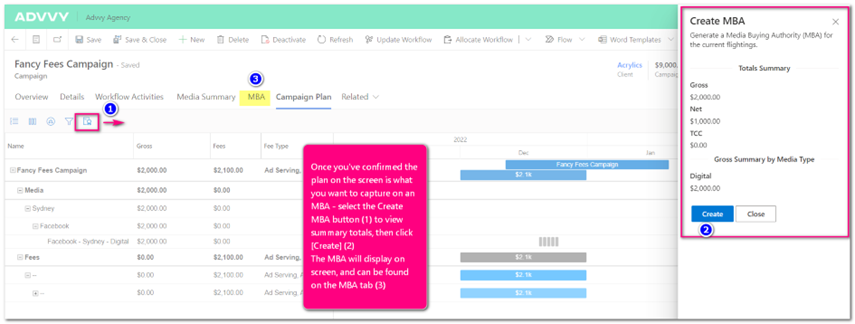
- Once a selection of the campaign plan has been filtered to the right parameters, it’s now easier to create an MBA. The MBA button will create an MBA summary first from the filtered selection in a side form. Simply hit create button to create the MBA.
- Previously an MBA was created from the ribbon bar. This was a separate process of manually selecting media types to create an MBA. It easily allowed horizontal creation of MBA’s by media type, but it was difficult ti create MBA’s by time. The new filter functionality on the Campaign now can be used to more easily create an MBA by any parameter including time.
- Zoom
- Zoom between year, month, week and day
- Settings
- Calculation Type
- This allows you to change the calculation type of how the expenditure summaries are calculated
- Pro-Rata
- Start Date
- Media Sum Value
- This gives the option to see the expenditure summaries by value type
- Gross, Net, TCC, Value
- Show Media and Fees Total
- This shows a highest level summary on the campaign line of the sum of all media and fees.
- This gives the option to see the expenditure summaries by value type
- This allows you to change the calculation type of how the expenditure summaries are calculated
- Calculation Type
- Export
- This functionality has been improved and bug fixed so that it will always export the total selection and not just what you see on screen.
All Campaign Plan
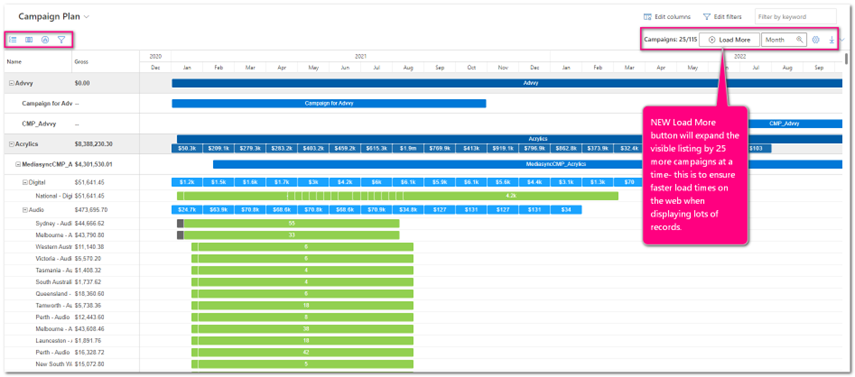
An overhaul of the existing All Campaign Plan (Campaign Plan dashboard) has also occurred with similar UI updates coming from the individual campaign plan. There are some subtle differences.
- Grouping
- To give better context when looking at all agency campaigns, a new higher level for Client has been added. This will sum up the campaign totals to the client line to get a quick and easy understanding of what is being planned for each client.
- Expand
- Includes an extra level to view expenditure by client, by group, by campaign, and detailed flighting
- Settings
- The toggle for showing total media expenditure is now set at the client level.
- Load more
- As there is a lot of data needing to be queried there is a limit on how many campaigns can be loaded to view. The load more button enables more records to be loaded at 25 records each time.
Limitations
There may be some performance issues when loading too many campaigns to view. Best practice would be to Filter the client selection first and then manipulate the control.
UPDATED Create Advanced MBA
Welcome to Advanced MBAs. In this release Advvy has introduced a new way to create MBA’s from your synced Media Plans.
Definition: MBA’s are Media Booking Authorities, a representation of the Media and Fees at a moment in time that Agencies send to clients for approval. Once approved by the client, the booking of the media can commence.
| Previous Release MBA: |
Current Release Advanced MBA: |
|
| · Create an MBA | from the Ribbon Button | from the Campaign Plan |
| · Create an MBA for the entire Media Plan | Yes | Yes |
| · Create an MBA filtered to a single Media type | Yes | Yes |
| · Create an MBA filtered to multiple media types (but not all) | Yes | Yes |
| · Create an MBA filtered to a period of time | No | Yes! New! |
| · Create an MBA filtered to a Media Type, with Media Type fee flights included | No | Yes! New! ** requires Excel Media Plan to sync Fees as Fee Flights |
MBAs can now be created based on filtered data sets by time periods.
1. In a campaign, navigate to the Campaign Plan Tab

2. Select the Filter Icon to display filter options and fill in desired criteria including start and end date. Select [Apply]
3. Confirm that the campaign details displayed are what you want included on an MBA, and then click on the create MBA icon to generate the MBA record.
Release Details
- Enhancements
| Area | ID | Title |
| Bespoke Dev | 7111 | MK Media: Notification : Daily Critical Tasks |
| Bespoke Dev | 7112 | MK Media: Notification : Daily Tasks Assigned |
| Bespoke Dev | 7251 | UM: Create a new plug-in to lock all flights on a Campaign eg for Hardclose |
| Bespoke Dev | 7290 | ADD 3 more Flighting Status Settings to Configuration Settings for Sweeney |
| Campaign | 7017 | Last Note – from Timeline only shows Notes and not latest Task Note |
| Campaign Plan | 7176 | All Campaign Plan – UI and UX improvements |
| Campaign Plan | 7186 | Additional Campaign Flighting Fields |
| Core Logic | 7004 | Research how to have multi-language support for custom code (JS/PCF/plugins) |
| Core Logic | 7104 | Add timeline control to Client form |
| Core Logic | 7129 | Add Medium support on Fee Flights |
| Core Logic | 7210 | Add new Flighting Type of “Paused” |
| Core Logic | 7237 | Expenditure Plan: Update type filter to contain the types for the current dataset |
| Environment | 5829 | Data Migration – Advvy D365 Environment to PowerApps-only Environment |
| MBAs | 7123 | Make Date Range on Advanced MBA plugin optional |
| MBAs | 7126 | Finish the Advanced MBA plugin |
| MBAs | 7130 | Update MBA creation process with improvements |
| MBAs | 7270 | MBA Totals roll up and fields |
| Media Plan | 6525 | Media Planning – MBA – Add campaign plan on MBA form in Agency App. |
| Media Plan | 6908 | Add Campaign Fee Flighting table to the media plan |
| Media Plan | 7136 | Changes to display fields for media plan |
| Media Plan | 7187 | Add import sync capabilities to additional campaign flighting fields |
| Media Plan | 7278 | Add Plan Version to Campaign Import Job |
| Portal | 7171 | PORTAL: Campaign Details – Channel Overview to display 20 records per page |
| Portal | 7263 | PORTAL: Record Campaign Plan as PCF |
| Workflow | 6807 | Advvy Activity Time Log Entry: Re-work Quick Create form |
| Workflow | 6893 | Plugin to throw exception when trying to Activate WF that has stages with no tasks |
| Workflow | 7095 | Activity List Control: Start and End Time to be set to 8am and 5pm on timeline |
| Workflow | 7281 | Add repair tweak to workflow definition activate logic |
- Bug Fixes
*List excludes internal backend Advvy development and bug fixes.
| Area | ID | Title |
| Core Logic | 7113 | Need to separate out the reference data matching process. |
| Core Logic | 7135 | Master Client not populated when Connecting to Campaign |
| Core Logic | 6683 | PORTAL: Styling issues when clicking next and previous page on lists |
| Core Logic | 7169 | Error in sync logic processing Position/Placement Duration/Size and Ad Category fields |
| Core Logic | 7241 | Expenditure Plan: Retrieve of filter options doesn’t include only “Active” and “Inactive – Completed” campaigns similar to the gantt data |
| Core Logic | 7252 | After Sync Campaign Media Type and Campaign Fee re-aggregation doesn’t include existing locked records |
| MBAs | 7264 | Creating MBA Fee Flights produces an error from Advanced MBA process. |
| Media Plan | 7141 | Optionset Lookup is not case-insensitive. |
| Media Plan | 7213 | Error with the logic for applying fees with/without media types |
| Media Plan | 7238 | Error in Aggregation flighting selection query |
| Portal | 7148 | PORTAL: Campaign Plan – ‘Start’ filter for date range selector retrieving incorrect data |
| Portal | 7195 | UM PROD PORTAL: AO / Expenditure Plan and Campaign Plan flighting retrieve (+ button) not loading |
| Reporting | 6533 | TA PowerBI Report – Showing a1axxxxxxx in a number of places. |
| Workflow | 7079 | Save Workflow Button (Workflow Activities Control): Sometimes Duplicate Hierarchy Definitions are being created after saving new workflow |
| Workflow | 7149 | Time Log Entry [Advvy Activities]: Negative time remaining is displayed as duration on new quick create form – should be set to 0 |
| Workflow | 7185 | Workflow Definition List: Bulk-edit ignores plugin exceptions for changing the status of WF definitions – Lock status field by default on WF definition form |
| Workflow | 7294 | Workflow Activity Definition when adding Hierarchy Definition Workflow Definition link is missing |
- Data Upgrades
*Advvy performing data housekeeping on existing records to ensure compatibility with new features
| Area | ID | Title |