Highlighted Features in This Release
- REDESIGN: Campaign Overview & Details tabs with Timeline Notes
- NEW Media Plan Add-in in the Office 365 Store
- NEW Editable View List with Grouping – Optional Global change available
- NEW Expenditure Plan
- NEW Calendar Events & Calendar Event Types
- NEW Client Portal Notes
- NEW Client Portal Expenditure Plan
REDESIGN: Campaign Overview & Details
The Campaign form in Advvy has had a make-over! Over the years the new campaign form has had an accumulation of changes and new fields added to it. There’ve been so many changes that it no longer reflected what most users want to see when first viewing campaign information.
The redesign has introduced a new tab – Overview, and has redesigned the existing Details tab.
The mandatory fields used at campaign creation are now on the Overview Tab, with the remaining fields on the Details tab. This creates a straightforward viewing experience for users.
Additionally, the Activities & Notes tab, has had the Timeline grid brought forward to the Overview tab to allow teams to instantly see the latest activity on a campaign, and to be able to add notes from this tab.
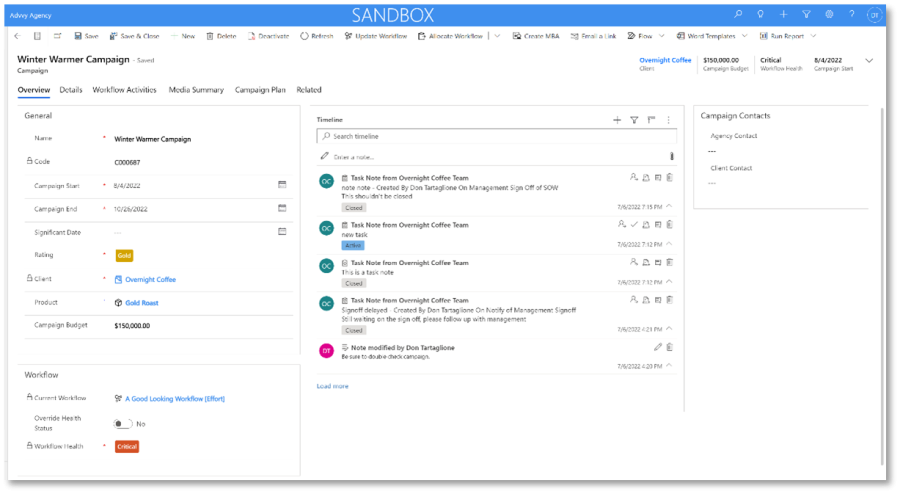
- Significant design change to key fields and Timeline notes
- Timeline Notes have been moved and consolidated notes have been moved to the new Details Tab
- Overview tab presents key campaign information
- Details tab provides additional information
The Timeline on the Overview tab allows users to create three different types of notes: Notes, Task Notes, and Portal Notes. Details on each of these notes can be found below.
Notes: These are your standard notes in Advvy that can be a powerful tool for teams. They can be created by writing directly on the Timeline grid or by hitting the small + in the same location. Notes can hold text information and have attachments added to them. They do not have a subject line or a status attached to them (Task Notes have an active or closed status).
Task Notes: These notes can be created by hitting the + sign on the Timeline grid. These notes are created in a separate box, include a subject, owner (the person creating the note), and content. Attachments can be added. These notes, once created, are given a status of Active. They can be marked closed by clicking the check mark that appears on the note.
Portal Comment: These notes appear in the client portal after being created and sent. Please see the Portal Notes section below for more info.
NEW Media Plan Add-in in the Office 365 Store
We have recently configured the Advvy Excel Add-in for Media Plan Sync to be made available in the Microsoft Office 365 store. This is to assist global client teams who may have restricted access to global add-ins being made available in office applications.
The Advvy Add-in has passed all security checks and has been certified by Microsoft.
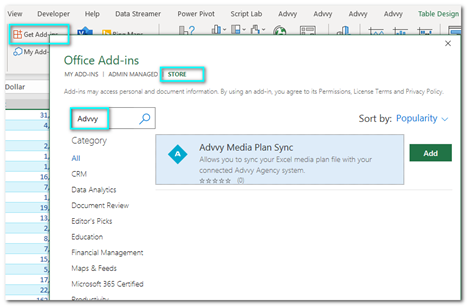
Most Advvy users should automatically have access to the Advvy Add-in in Microsoft Excel, but for those who cannot see it (and who are licensed to use Advvy) it can be manually added following the steps below:
In Microsoft Excel:
- Go to the Insert menu
- Select [Get Add-ins]
- in the pop-up select [Store]
- Search for ‘Advvy’ and select [Add].
NEW Expenditure Plan
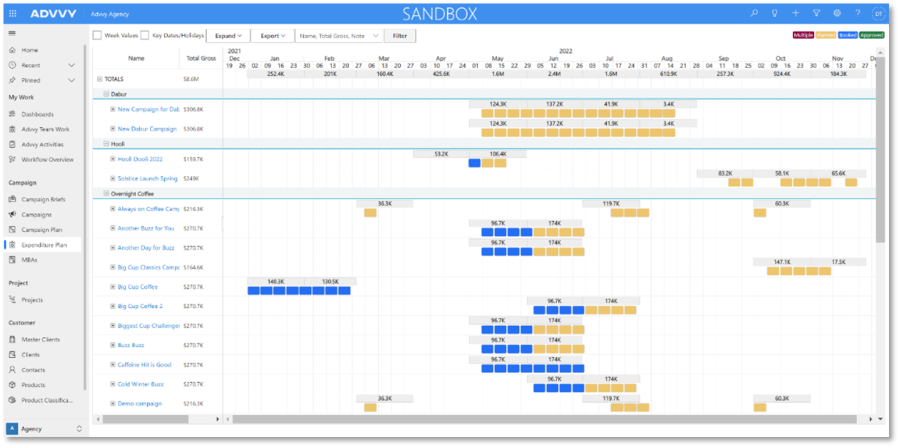
Advvy’s new Expenditure Plan is a powerhouse dashboard specifically designed to help media professionals view, analyse and report on their expenses. The dashboard’s variety of filtering options makes it possible to answer key questions regarding media spend.
The year-long default view shows the user each campaign they have access to, its media types and flightings. Expenses are broken down by month, and when the Week Values checkbox is ticked in the top left corner, users will be able to see weekly expenditures.
The expenditure plan is colour coded to display different statuses of media buys including Planned, Booked, Multiple and Approved.
Clicking the filter option at the top of the dashboard causes the side panel of filter options to appear. This allows the user to control the filters by the following options:
- Date range
- Campaigns
- Job No.
- Client
- Client Type
- Demographic
- Governance
- Min/Max budget
- Media Type
- Market
- Type
These filtering options make it possible to quickly answer questions like: “How much did a client spend on Digital Q2 of last year?”
There’s also a Key Dates/Holidays checkbox. When ticked, it displays a view that flags all major holidays or key events throughout the year (or whichever date range the user selected). This area is completely customizable, allowing the user to add any holidays/events they’d like via the Agency Settings section of Advvy. This functionality can be utilized to quickly view all important dates throughout the year and manage media spend around them.
We’re confident that quick access to this expenditure data will become highly valuable for media professionals using Advvy.
NEW Calendar Events & Calendar Event Types
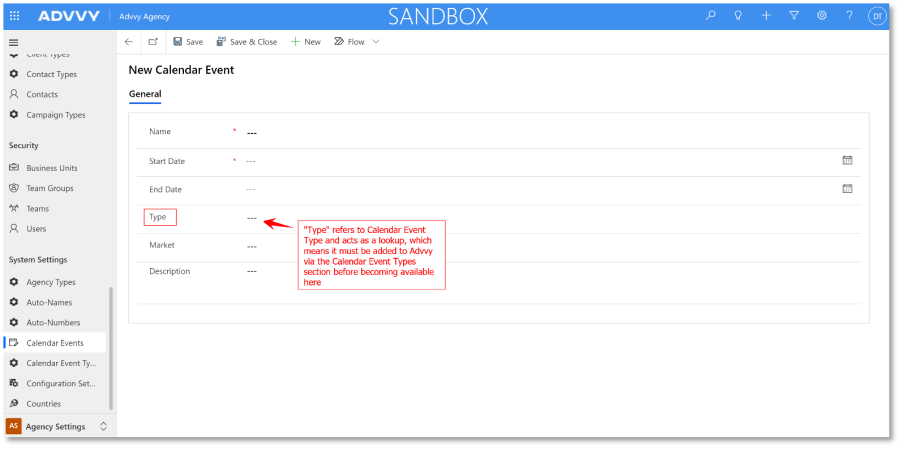
Users can now add key dates into Advvy via the Calendar Events section. These events can be classified in different ways via “event types” that are managed via the Calendar Event Types section. Both sections are found in the Agency Settings area in Advvy.
Calendar Events are displayed in the Expenditure Plan dashboard when the “Key Dates/Holidays” checkbox is ticked.
NEW Editable View List with Grouping – Optional Global change available
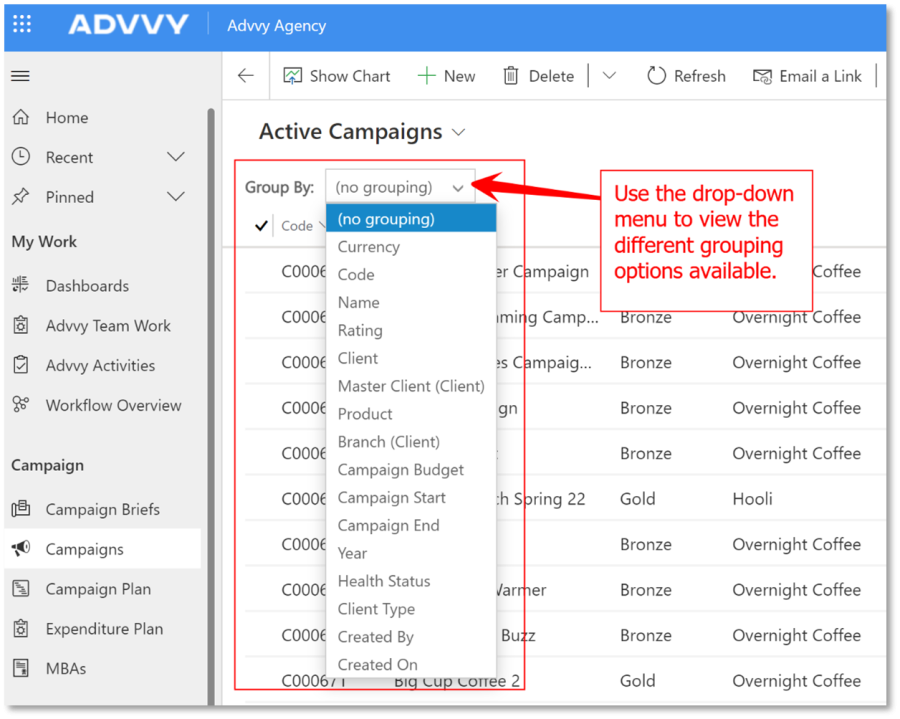
User will notice a new drop-down menu that provides grouping options for the data presented in Advvy. This allows users to quickly group information via a variety of options.
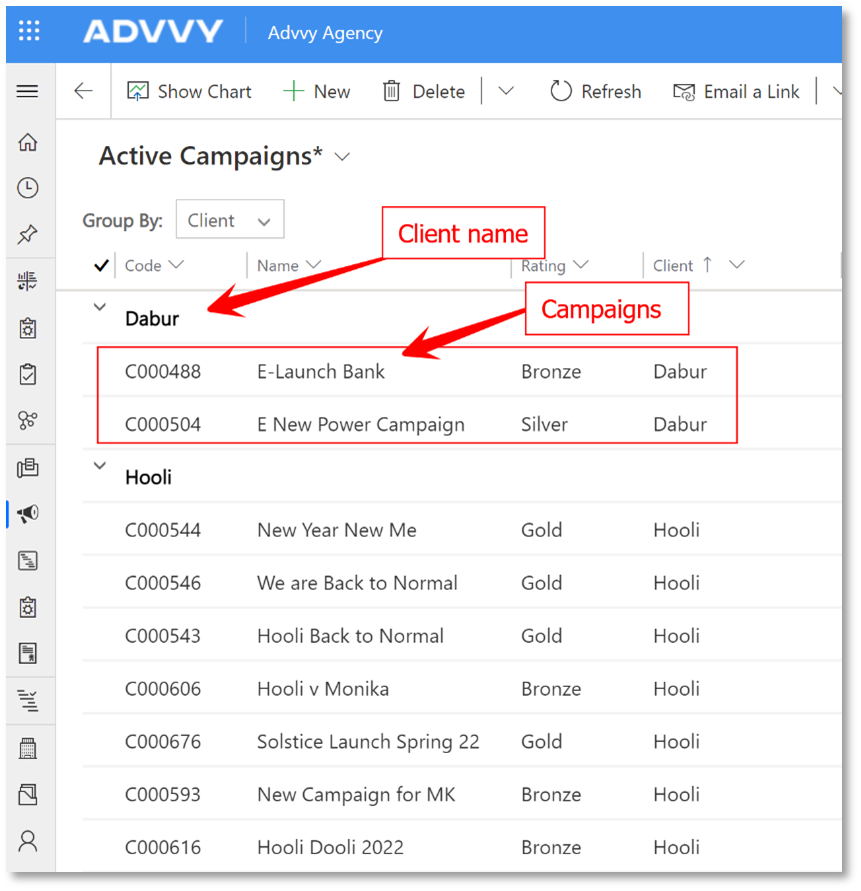
For example, in the Campaigns section, users can quickly group campaigns by client. This organizes the data allowing users to access the data they need quicker.
Example of the Campaign Section grouped by Client:
The grouping option is available in the following areas:
- Advvy Activities
- Campaigns
- MBAs
NEW Copy Task Assignment
The “Assign Copy” functionality allows a user to copy the task assignments from one campaign to another. It’s a massive time saver if campaign tasks are often assigned to the same members of a team.
This new functionality is part of the Allocate Workflow functionality group, which can be accessed via a drop-down menu within a campaign.
Important points to remember:
- Users must be in the new campaign, i.e. the campaign where the new task assignment is taking place to begin the “Assign Copy” process
- Both campaigns, meaning the new campaign you created for task assignment and the original campaign you are copying task assignments from, must be using the same workflow for this feature to work properly
- Both the original campaign and the campaign where the new task assignment is taking place must exist in Advvy before starting this process
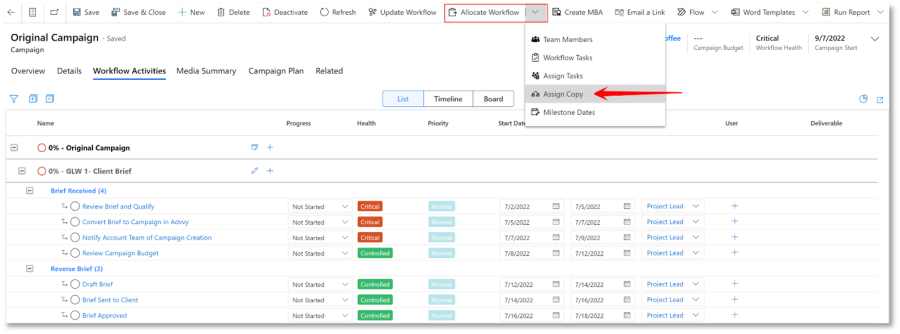
To copy task assignments in a campaign, click the Allocate Workflow drop down menu, and click Assign Copy, as shown above. This will cause the search box to appear from the right side of the screen.
Search for the campaign that you want to copy the task assignments from. Once selected, click Add. Wait at least 30 seconds and hit the refresh button. The campaign should be updated with the new task assignments.
NEW Client Portal Timeline Notes
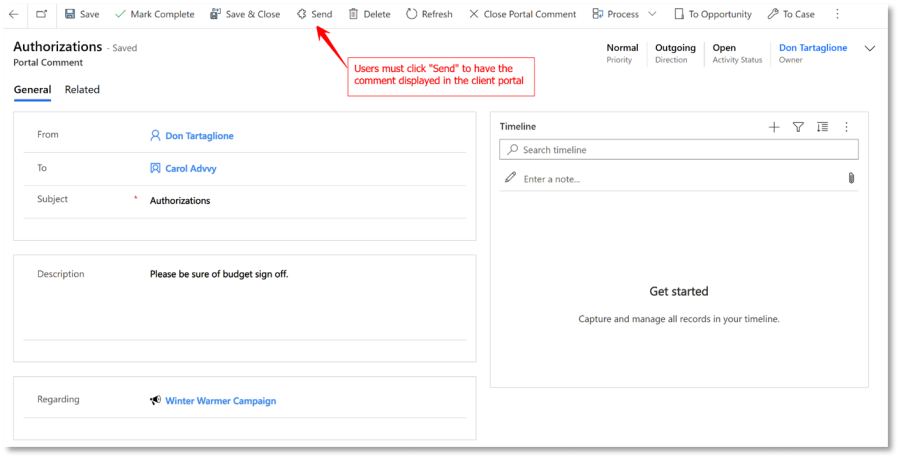
In a campaign record, users in Advvy can create Portal Notes via the Timeline Grid. To create a portal comment, click the + in the top right corner of the timeline grid and selecting portal comment. Only a subject is required to create a portal comment, but users can select a specific user contact for the note to be addressed to. Please be mindful that notes are public even if addressed to a specific user.
Once the note is created, and saved, the user must hit the send button on the top of the form for the comment to be sent to the portal. The note will appear in the Campaign Details section of the client portal.
Blank Portal Comment Form
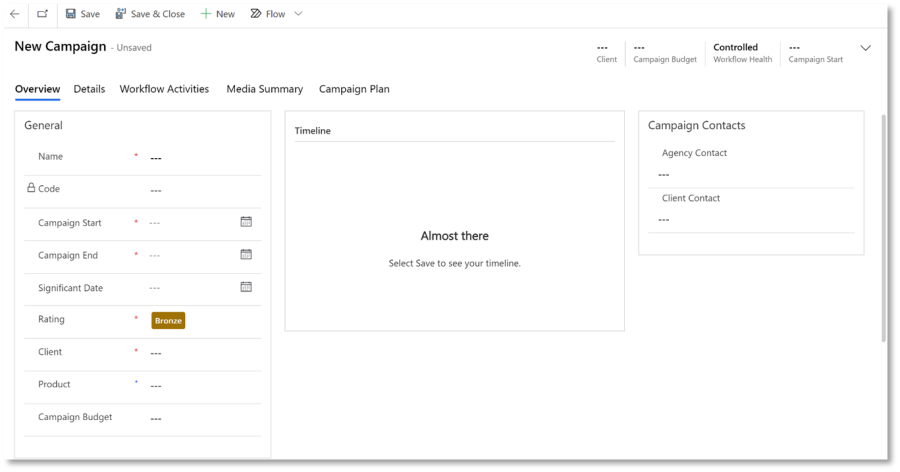
Filled in Portal Form
NEW Client Portal Expenditure Plan
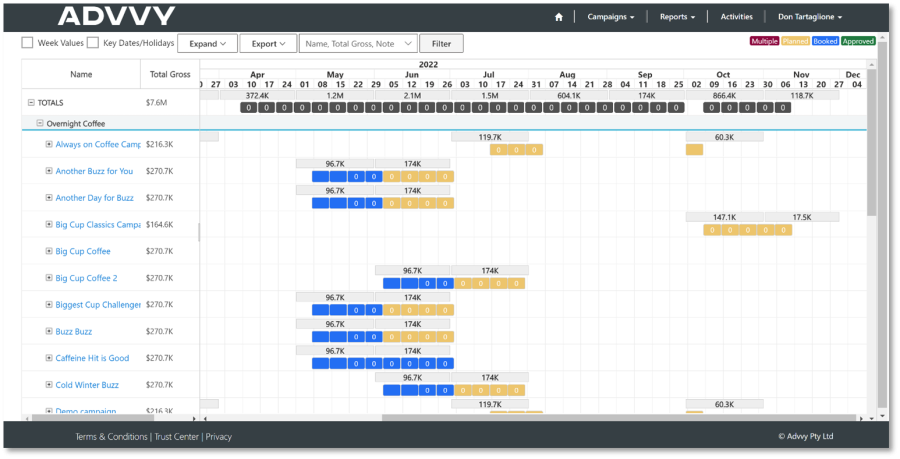
The latest dashboard added to Advvy’s Client Portal is the Expenditure Report. It’s located in the Reports section of the client portal via a drop-down menu and it’s a direct reflection of that client’s expenditure data in Advvy.
Clients can use this dashboard to view their media spend information and see the status of their booked media in colour coded formats to display Multiple, Planned, Booked, and Approved media.
The many filtering options available can help self-serve important information related to their spend data in Advvy.
Release Details
- Enhancements
| Area | ID | Title |
| Campaign WF | 6174 | Workflow Activities – Change icon for Edit Workflow |
| MBAs | 6445 | Flow: Create email flow notification on MBA Status update |
| Portal | 5650 | PORTAL: Report/Page list of all MBAs and their status |
| Portal | 5682 | PORTAL: Consistent Currency to be displayed – Add Portal User’s Currency to Campaign Plan |
| Portal | 6138 | Portal: Update Contact and User Table Permissions to be non-global permissions |
| Portal | 6162 | Portal: Campaign Plan – Update filtering functionality |
| Portal | 6207 | Portal: Campaign Brief new form – allow client selection to filter product field and product selection to filter client field |
| Portal | 6234 | Portal: Add different field label sets depending on contact’s associated role |
| Portal | 6488 | Client Portal: Campaign Plan – New Campaign Column options |
| Portal | 6565 | Client Portal: MBA form – Allow for “all” media types to be seen “without” paging on the MBA form |
- Bug Fixes
| Area | ID | Title |
| Add-in | 6548 | When syncing a media plan it converts the Start date to US format, end date stays as dd/mm/yyy |
| Agency | 5546 | Campaign Plan: Tooltip is displaying different currency than that in Personalization settings |
| Agency | 5896 | Workflow Type on Reporting Pillar Needs to Be Removed. |
| Agency | 5897 | Workflow Type on Stage Definition Needs to be removed. |
| Agency | 6021 | Advvy Activity Form: Form logic tab error |
| Agency | 6101 | Advvy Activity form: Progress status on admin tab is unlocked for blocked activities |
| Agency | 6119 | Workflow Form: Incorrect form loaded in certain cases |
| Agency | 6124 | Advvy Activity form: Assigned User selection incorrect when making a new advvy activity from the activity list section or client entity form |
| Agency | 6137 | Workflow Overview: Rapidly clicking on stages on Workflow Overview to open the task control results in multiple task controls opening. |
| Agency | 6178 | Advvy Activity List PCF: Grouping is cleared after selecting a task |
| Agency | 6423 | Calendar Events: Able to add Calendar event start date after End date |
| Agency | 6424 | Advvy Activities Grid PCF: Rapidly clicking on Activities results in multiple task modals opening |
| Agency | 6577 | Advvy Activity form: Assigned Role should be locked when role locked is enabled |
| Agency | 6587 | Flighting Entity – Week Definition not always found |
| Client Portal | 6205 | Portal: Log-in to access denied page when having ‘Aus Gov’ role |
| Client Portal | 6206 | Portal: Activity Overview navigable when not logged in |
| Client Portal | 6305 | Portal: Campaign Plan Gantt chart does not display when select all columns in small screen |
| Client Portal | 6332 | Portal: Campaign Plan – Page scroll position resets when attempting to expand a campaign to load flights or changing column visibility |
| Client Portal | 6349 | Portal: Campaign Plan – Final row is hidden behind horizontal scroll when there are enough records to make the gantt vertically scrollable |
| Client Portal | 6352 | Portal: Access Denied page not displaying correctly |
| Client Portal | 6444 | Client Portal: Campaign Plan Gross Media aggregate incorrect if flighting contained a media subtype |
| Client Portal | 6530 | Portal: Campaign Plan tooltip changes – Update value text to display “Flighting Gross”, add “Cost to Client” as an additional value shown on the Campaign level |
| Client Portal | 6599 | Portal: Activity Overview – Media type, Market and Types filter are not working when apply filter on any one of the options in those fields |
| Client Portal | 6443 | Client Portal: MBA form in Client portal showing form error |
*List excludes internal backend Advvy development and bug fixes.