Advvy Campaign Record Help Guide
Campaign Hierarchy
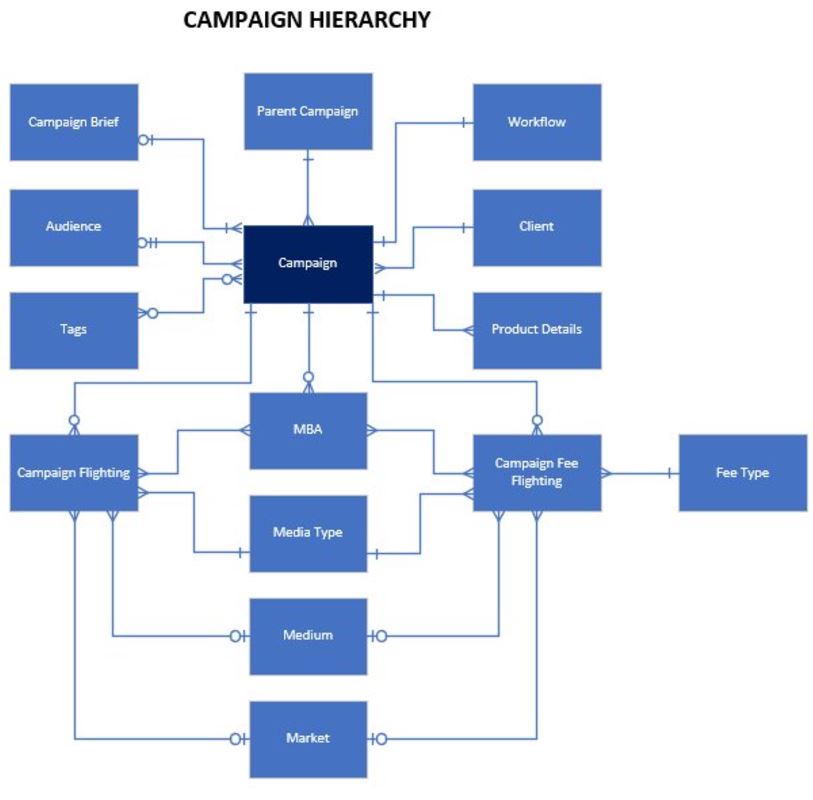
In Advvy, the Campaign Hierarchy provides a robust framework for managing the complexity of modern media campaigns, connecting multiple entities and streamlining workflows.
At the Campaign level, key details such as the parent campaign, workflows, client, product information, fees, MBAs (Media Buying Agreements), flighting schedules, tags, audience targeting, and campaign brief are all interconnected. This ensures that every aspect of a campaign is seamlessly linked for efficient planning and execution.
The Campaign Fee Flighting component is pivotal for budgeting and scheduling, linking to critical elements such as the market, medium, fee type, MBA, and media type. This enables precise allocation of resources across different markets and media channels, tailored to specific campaign objectives.
Additionally, Campaign Flighting ties directly to the market, medium, media type, and MBA, offering granular control over the deployment of media assets and ensuring alignment with overarching strategies.
This interconnected structure enhances collaboration, optimises resource management, and delivers detailed insights for better decision-making throughout the campaign lifecycle. Advvy’s hierarchy system simplifies complexity, ensuring campaigns are both effective and efficient.
What is a campaign record?
A campaign is the primary record in Advvy. It centralises the media plan data and also provides a better way to manage the implementation of the campaign.
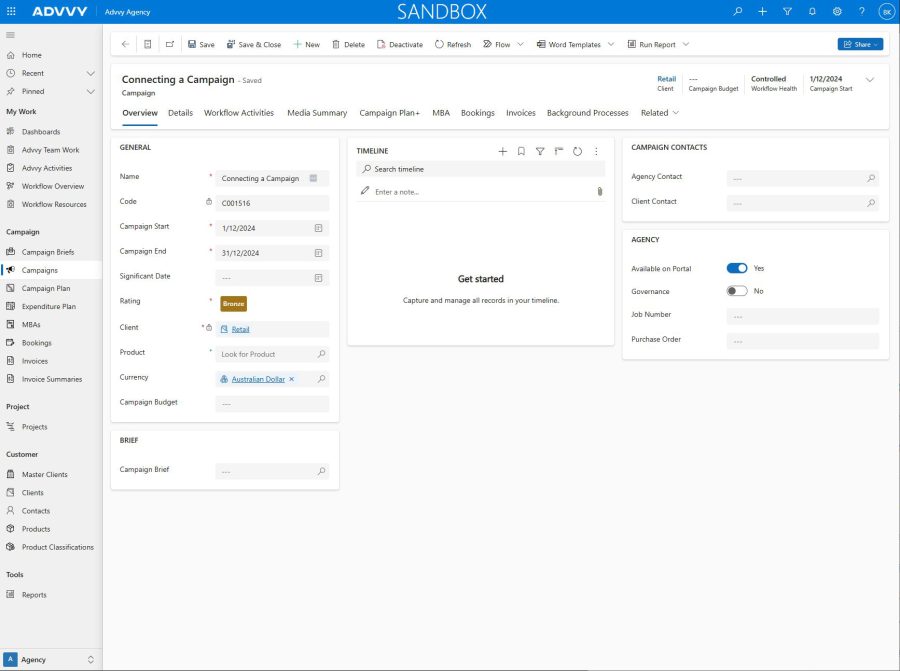
Campaign Record Tabs
Overview
In the Campaign record, multiple tabs can be accessed for specific information. In the section below, we briefly discuss the purpose of each tab.
General
This section defines the campaign record criteria that are displayed throughout Advvy. This information also links the campaign to a client record. Once this is saved, this cannot be edited.
Details
The Details tab displays the Campaign Details, Audience, Brands, Automation, and Workflows associated with this campaign record. These include the campaign’s status, agency details, target audiences, and parent/child campaigns. See more about Parent/Child Campaigns here.
Please contact customer support if custom fields are necessary.
Workflow Activities
The Workflow Activities control allows the user to view a campaign’s workflow instance in its entirety. Through multiple different displays, the user can visualise their activities to complete the campaign via a list, timeline, or kanban display. Users can easily update activity information on a singular or bulk level and can filter the display to view only a subset of activities. Updating the progress and due dates of activities will additionally update the health of the campaign.
Media Summary
The Media Summary tab displays overall media costs for the campaign that have been calculated from Campaign Flightings, typically created from Media Plan syncs. This is broken down further through a list of media types and their cost contribution to the media totals. Lastly, Campaign Fees are additionally displayed as a list with fee information tied to media types. These are calculated from Campaign Fee Flightings, typically from Media Plan Syncs.
Campaign Plan +
The visualisation for your media plans is generated from Campaign Flightings and Campaign Fee Flightings. See the Media Planning section for detailed help on using the Campaign Plan +
This differs from the Campaign Plan as the Campaign Plan + control allows you to generate an MBA record. Flights included in the MBA are determined by the filter applied to the Campaign Plan + control. Ensure the correct figures, media types, and fees are included through the summary dialog.
Fee Flights are only visible at this level, however, by default, they are filtered out unless actively chosen.
MBA
A grid listing all the MBAs that have been created.
Bookings
A grid to show all the Bookings that have been created
Invoices
A grid to show all the Invoices that have been created
Related (Dropdown)
This enables you to see other menu items that are not automatically displayed. Key Related tabs are:
-
Campaign Contacts
A grid to show all contacts associated with the campaign.
-
Campaign Flighting
The underlying lowest level of campaign data is used to generate all reports, actions, and other features. These are typically created from an Excel Media Plan sync.
-
Campaign Fee Flighting
The underlying lowest level of campaign fee data is used to generate reports and action other features. These are typically created from an Excel Media Plan Sync.
-
Campaign Import Jobs
Shows all the media plan syncs and the status. If there seems like an issue with the data between the Excel plan and Campaign Plan, see the Import Jobs first to troubleshoot.
-
Campaign Actuals
A grid to show all campaign actuals for the campaign.
-
Campaign Rate Card Items
A grid showing all campaign rate types and media/media sub-types.
-
Brands
A grid to show all brand codes associated with this campaign.
-
Tags
A grid showing all tags associated with this campaign.
-
Documents
All documents uploaded by the team can be housed here. This will also show last modified, who last modified it, and the location of where the file is stored.
-
Audit History
When this item is selected it will display a list of changes performed to the record. Note auditing can be turned on or off by your administrator in advanced settings.
-
Background Processes
A grid showing all system jobs that have been actioned for this campaign. The status of any system job can be checked here to ensure that the job has been completed, or stuck, for further troubleshooting.