Advvy Overview
Advvy Agency is a media planning and project management platform design to provide media agencies a more effective way of managing campaigns and a more efficient way of reporting to their clients.
Features
- Dashboards – Provides an overall view of all the campaigns, their health status, campaign work in progress and percentage of completion of each campaign. It provides critical information about each campaign, in real-time, for work in progress. It also allows you to create custom dashboards.
- Campaigns – This the hub where all the activities associated with a campaign are contained.
- Campaign Details
- Campaign Status and Health
- Projects – for any non-campaign work.
- Project Management
- Timeline
- List
- Kanban Board
- Media Planning
- Media Plans and Flightings
- Client Hierarchy – Built for media agencies to manage complex clients, these records maintain all relevant client information.
- Master Clients
- Clients
- Products
- Product Classifications
- Master Data – The data that sits behind the scenes
- Media Type Class
- Media Type Segments
- Media Type Group
- Media Type
- Reports – Allows you to run and manage various reports.
- Alerts – Displays all the alerts, including Errors, Warnings, and Information, related to your account. You can view and delete alerts in this module.
The benefits of Advvy Agency are:
- Visibility across Organization – Offers digitized workflow which will give you 100% visibility on all campaigns and tasks, in real time.
- Cost savings – Offers single campaign record which will reduce double handling and increase knowledge sharing which saves time and costs.
- Compliance of Process – Offers automatic activity logs tracking that tracks all user and media planning data and so compliance reviews become a breeze.
- Leverage Microsoft’s Infrastructure – Offers integration with existing Microsoft environment and Microsoft productivity tools which your employees use everyday, will save re-investing in new infrastructure.
- Global Insights – Offers centralization of activities in a consistent way for ease of reporting. It can even provide a cross tenancy reporting layer, locally or globally.
- Easier Staff On-boarding – Offers a systematic approach to workflow which enables new staff to be trained in the processes of any account, in a fraction of the time.
- Platform as a Service – Offers its solutions as boxed applications that can be built upon for specific market needs.
- Enterprise Compliance – Offers enterprise agency compliance for requirements, including SOX and GDPR when built into workflows.
- Future Proof your Agency – Offers the future of a connected media and advertising ecosystem. Working with Advvy Media Workflow means you have a trusted partner, now and into the future.
How it Works?
The application is installed into your company’s Microsoft 365 tenant. This means it becomes an extension of the tools you know and use everyday – Outlook, Word, Excel etc. The application integrates with your organizations Active Directory for single sign on, so once you have logged into your computer and network, you are logged into Advvy Agency
How to Access?
Your agency will have thier own custom URL for the solution that is different to any other. As easy way to access the Advvy Agency is to login to Microsoft365.com and click on “Apps” and then select “Business Apps”. You will see Advvy Agency icon.
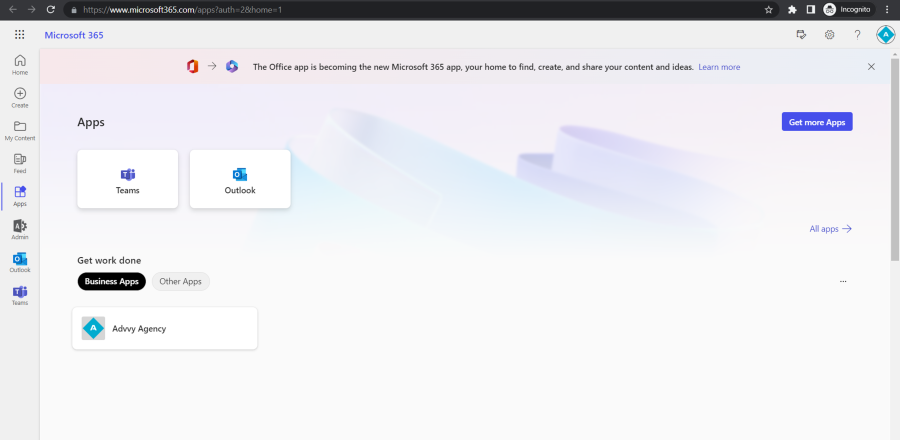
Logging onto Advvy Media Workflow
If you have already logged into your computer at your office, then there is no need to log into Advvy Agency as you are already logged into your organization’s Active Directory. So, to access the application is simply –
- Enter your custom URL, provided by Advvy, in the address bar of a browser. You can save this URL as a shortcut or bookmark for ease of access. It will look like this, and will havehttp://<your organisation custom path>.crm(X).dynamics.com(x) is a whole number
- If you are accessing Advvy remotely or from a different computer outside your network, then you will be redirected to the Advvy login page.
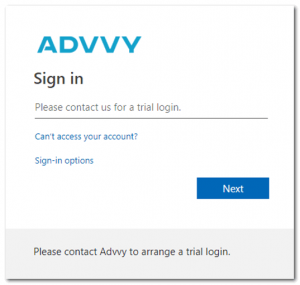
- Enter your registered email ID and click Next.
- You will be prompted to enter your password. Enter your password and click Next.
Note: This password is the same password you use to access your Office 365.
The next guide will show you how to navigate your way around Advvy with some popular shortcuts and tips!
Previous Article: Getting Started 6 Next Article: Getting Started 2