MBA – Media Booking Authorities
Advvy MBA utilizes synced Media Plan data, Client Contacts and the Advvy Client Portal to create an electronic approval process from Client to Agency.
MBAs or Media Booking Authorities are simple forms that allows an agency to purchase advertising on a client’s behalf. In addition to providing the client with details such as expected spend and fees, MBAs also protect the agency by delivering digitally signed documentation of what the client approved. The form also increases agency efficiency by providing media buyers a single, approved reference point from which to place the buy.
Advvy includes the ability to produce MBAs within a Campaign record.
Advvy MBAs are made visible for Client approval through the Advvy Client Portal.
The MBA process at a high level is:
- Agency: Syncs Media Plan data to Advvy Campaign Record (using Advvy Add-in for Excel)
- Agency: Filters the Campaign Plan to include the desired attributes of the plan to get approved.
- Agency: Creates MBA record in the Campaign
- Agency: Edits the MBA record and adds Client Contact name to notify them of the MBA and sets the MBA status to “Awaiting Approval”
- Client Contact: Receives an email notification with a link to the MBA
- Client Contact: Accesses the Advvy Portal to view campaign details as well as to digitally view, digitally approve and digitally sign the MBA record.
This provides an internal, compliant end-to-end solution for approvals from your client where the Media spend data is maintained within your Microsoft Advvy Environment.
(Third party tools such as Docusign can be configured via a Change Request- implications regarding external data need to be considered)
Prerequisite Setup
Before an MBA can be produced you’ll need the following setup in Advvy:
- An MBA template document configured in your Advvy Platform
- Media Plan Information from a synced Media Plan
- Client Contact that has been granted access to the Client Portal
- Client Legal Documentation added to the Client record
1. The MBA template document is designed in word and will be used if your client wants to produce a downloadable file from the digital MBA record in Advvy. The Advvy Support team will help configure and add this template to your Advvy environment. Multiple Download Templates can be added to Advvy if your Clients require a different printable format.
2. The Campaign record in Advvy must contain Campaign Flighting data in order to generate an MBA. The campaign flighting data is most often populated by syncing your Media Plan via the Advvy add-in for Excel.
3. The Client record in Advvy must contain at least one Client Contact record (Name of person and email address details as a minimum). The client contact is added to the MBA record to send them a notification link to the MBA in the Client Portal. This client contact should be configured with access to the Advvy Client Portal where they can view and action pending MBAs that are Awaiting Approval.
4. The Client record has a text field that can be populated with any terms and conditions that need to appear on the MBA for the client.
How to create an MBA for a campaign
Once a Campaign contains Campaign Flighting data, Campaign Fee Flighting Data and therefore summarised Media Type values and Fee Values in the Media Summary tab, an MBA can be created:
1. Navigate to the Campaign Record and select Campaign Plan + tab.
2. On the Campaign Plan toolbar ribbon select the  Create MBA button. A panel appears on the right side of the screen displaying a summary of the information that will be included on the MBA record.
3. Select the [Create] button at the bottom to create the MBA record. An information bar will appear at the top of the campaign plan record while the MBA record is being processed for generation.

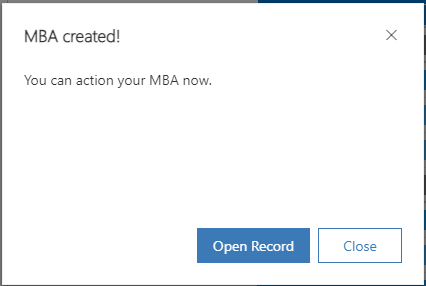
When this process completes, a dialog will appear informing that the process has completed and providing an opportunity to navigate to the new MBA record.
4. The default selection is to create an MBA from the entire Campaign Plan as you see it. With the latest release of Advvy you can now create an Advanced MBA. This allows you to create an MBA horizontally by heirarchy – i.e by Media Type, Network etc. Or vertically by time i.e By Month. You can now create and manage any number MBA’s from any filtered variation of the plan.
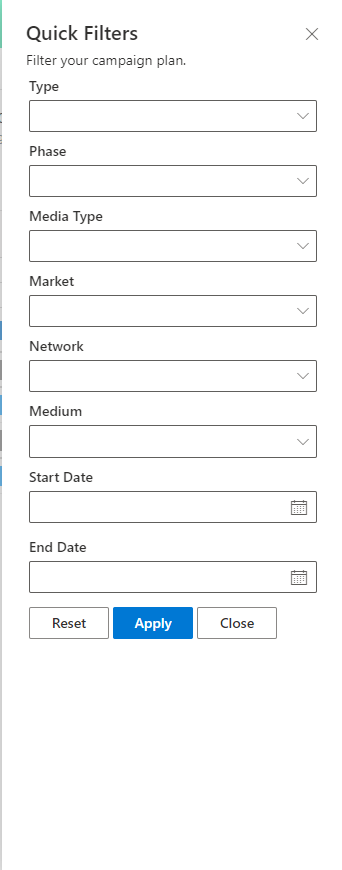
To create an Advanced MBA, simply selected your desired attributes by using Quick Filter Options . Click on the filter icon:
A form will pop out giving you the option select your attributes:
5. A new MBA record is created and added to the MBA tab. Select the MBA to check the MBA details.
-
- At this stage an MBA has been produced and the data used to produce the MBA is a snapshot at a point in time. If another media plan sync updates the media details on the campaign, these new values will NOT be reflected in any existing created MBAs. You’ll need to create a NEW MBA to replace or supersede an existing MBA.
- At this stage an MBA has been produced and the data used to produce the MBA is a snapshot at a point in time. If another media plan sync updates the media details on the campaign, these new values will NOT be reflected in any existing created MBAs. You’ll need to create a NEW MBA to replace or supersede an existing MBA.
5. Check the MBA:
-
- The Details tab contains information about the Plan version, Plan date and Campaign related details. Scroll to the bottom to check the Client Legal documentation has been copied from the Client Record.
- The Media Details tab contains all the investment Grand Totals, Totals by Media Type, Flightings and Fees. (These data elements can be manually overwritten if required- but they will only be reflected in the MBA record and not the Campaign Media plan details)
- The MBA Plan tab contains the Flowchart visualisation of the MBA that had been generated.
6. Select to the Details tab and add a Client Contact in the Contact 1 field. If a second client contact is required to approve (or be notified) select the [Add 2nd Approver] switch to display fields relating to the 2nd contact.
7. Save any changes. At this point the MBA is still an internal record visible only to Agency users.
Getting an MBA Approved
There are mutiple ways to get an MBA approved.
- Client Portal
- When you are ready to make this MBA visible to your client, change the MBA Status from “Current” (default) to “Awaiting Approval” and then select [Save & Close] on the Ribbon.
- Once the MBA status changes from “Current” to “Awaiting Approval” the system will notify the Client contacts via email. The email will contain a URL link to the MBA in the Client Portal to take the user directly to the digital MBA record.
- Your client will click on the link and navigate straight to the MBA record in their client portal. Now they can easily review the details of the MBA, see the media type summary and the detailed media plan on the MBA Plan tab. If they wish they can put in a PO number on the form. Then they will navigate to the signing section to digitally sign to approve the MBA.
- They can also see a PDF version of the MBA in the Notes based on the file template designed as outlined at the begining of this section.
- Manual Approval
- You can simple change the MBA Status from “Current” (default) to “Approved” and then select [Save & Close] on the Ribbon.
- This will not go through the Client Portal signing experience.
- If you agency needs an internal approval process, please contact customer support for a brief of requirements.
- Other Approval (Docusign et al)
- It possible that Advvy can create a bespoke approval process. One example is using Docusign. By selecting the MBA Status from “Current” (default) to “Awaiting Approval” and then select [Save & Close] on the Ribbon, this will also create the PDF version of the MBA that can be retrived from the Notes tab on the MBA form.
- From here you can use this PDF to follow your agency procedure using Docusign et al.
- If you would like a more automated way of using Docusign or another signing tool, Advvy can create a bespoke integration for your agency. Please contact customer support.
- If you would like a more automated way of using Docusign or another signing tool, Advvy can create a bespoke integration for your agency. Please contact customer support.
MBA Status Definitions
| Current | Internal Current MBA | NOT visible on the client portal |
| Awaiting Approval | MBA made visible on the client portal – unactioned | visible on the client portal |
| Internally Replaced | Internal Current MBA that has been superseded but not made visible to the client | NOT visible on the client portal |
| Superseded | An ‘Approved’ MBA that has had another MBA generated with the same criteria | visible on the client portal |
| Approved | MBA that has been actioned as Approved | visible on the client portal |
| Partially Approved | MBA that has been actioned as Approved by only one of two approvers | visible on the client portal |
| Rejected | MBA that has been actioned as Rejected | visible on the client portal |